Dolev 4press - Procedures
Service Utilities
After you select Service Utilities from the Util menu, the system
activates Service Utilities mode.
Alternatively, to access Service Utilities mode from the Host, select Set Up: I/O Devices:
Plotter Setting: Machine: Plotter Remote Mode. Use the <Arrow>, <Space>, and
<Enter> keys to activate the interface.
The following screen appears.
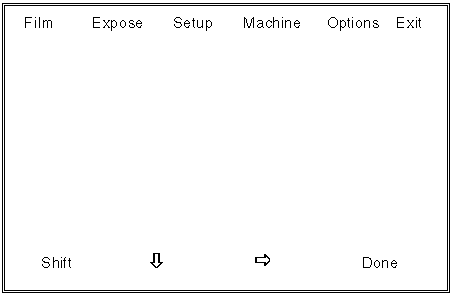
- Press the ò
and/or ð buttons to access the
desired function, and press Done to select it.
or:
- Press ð
until you access Exit and select Done to exit Service Utilities mode.
The menu headings (i.e., Film, Expose, Setup, Machine, and Options) are described in the
corresponding sections below.
Main Screen - Soft Functions

SHIFT
Use this button to toggle the status of the ò, ð, and Done
buttons.
- Hold down Shift to toggle the ò button to ñ.
or:
- Hold down Shift to toggle the ð button to ï.
or:
- Hold down Shift to toggle the Done button to Esc.
ò (switches to ñ while Shift is held down)
- Press ò to
move the cursor down, and highlight the menu entry below the current.
After you hold down Shift, the ò
button switches to ñ.
- Press ñ to
move the cursor up, and highlight the menu entry above the current.
ð (switches to ï while Shift is held down)
- Press ð
while all menus are closed to move the cursor to the menu heading to the right of the
current.
- Press ð
while a menu is displayed to move the cursor to the menu heading to the right of the
current, and display its menu.
After you hold down Shift, the ð
button switches to ï.
- Press ï
while all menus are closed to move the cursor to the menu heading to the left of the
current.
- Press ï
while a menu is displayed to move the cursor to the menu heading to the left of the
current, and display its menu.
DONE (switches to Esc while Shift is held down)
- Press Done to select a menu heading or a menu entry.
After you hold down Shift, the Done button switches to Esc.
- Press Esc to remove the currently displayed menu, and exit to the
menu above or to the Service Utilities Main screen.
Mode - MENUS
After you select a menu heading on the Service Utilities Main
screen, a menu of entries appears (e.g., after you select Film, the Film menu appears).
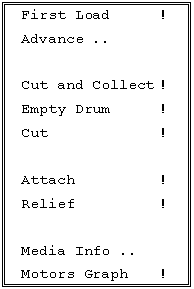
Sample menu (film)
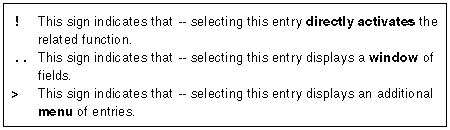
In the sample menu above, the > sign is not used.
Mode - WINDOWS
After you select a menu entry which is followed by . .
a window of fields appears (e.g., after you select Expose: Res./Int. Setting: 1.. the
Res/Int Setting window appears).
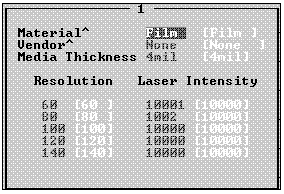
Sample window (Res/Int Setting window)
Soft Functions

SHIFT
Use this button to toggle the status of the Next-Field and
Next-Value buttons.
- Hold down Shift to toggle the Next-Field button to Prev-Field.
or:
- Hold down Shift to toggle the Next-Value button to Prev-Value.
NEXT-FIELD (switches to Prev-Field while Shift is held down)
- Press this key to move the cursor to the next field.
After you hold down Shift, Next-Field switches to Prev-Field.
- Press this key to move the cursor to the previous field.
NEXT-VALUE (switches to Prev-Value while Shift is held down)
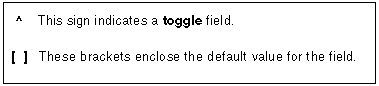
A toggle field is indicated by a ^ sign which follows the field name. It switches between
several pre-defined values.
- Press Next-Value while the cursor is located in a toggle field to
cycle to the next value.
After you hold down Shift, Next-Value switches to Prev-Value.
- Press Prev-Value while the cursor is located in a toggle field to
cycle to the previous value.
DONE (switches to Esc while Shift is held down)
- Press this button to confirm the values in the window.
After you hold down Shift, Done switches to Esc.
- Press Esc to exit a window without saving your changes.
If you modified a value in a window field, pressing Esc resets the last field you modified
to its previous value. Press Esc again to exit the window.
|

