

Home | Contact Us | Submit Troubleshooting Info | Search | Help
Output | Software Solutions | Proofing | Color, Screening and Calibration | Scanning | Digital Photography | Consumables | POS
Home | Contact Us | Submit Troubleshooting Info | Search | Help
Output | Software Solutions | Proofing | Color, Screening and Calibration | Scanning | Digital Photography | Consumables | POS
Dolev 4press -
Troubleshooting & Diagnostics
|
||||||||||||||||||||||||||||||||||||||||||||||||||||||||||||||||||||||||||||||||||||
| COMMAND.COM | Dos 6.20 system file. (With 2 more Hidden Files) |
| AUTOEXEC.BAT | Batch file which is activated automatically after the BOOT and runs the Diagnostics in the Configuration Mode defined by the SETUP. |
| CONFIG.SYS | Configuration file for DOS which activates ANSI mode. SMARTDRV.EXE (DiskCache program). |
| SETUP.EXE | Setup Utility for Diagnostics Configuration Mode (see section Diagnostics Configuration Modes below). |
| DIAG.EXE | Diagnostic Tests Program. |
| UTIL.EXE | Utilities Program for Adjustment, Operation, etc... |
| RUNBATCH.BAT | Batch file to run external programs and return to UTIL.EXE |
| DIAG_REM.BAT | Batch file for remote RS232 communication with DIAG. This batch is activated with port number & Baud Rate parameters. Example: diag_rem 1 9600. |
| DIAG_BAT.EXE | Linking Program Between Diagnostics and Application. |
| DLIST.EXE | External program to list DOS files. |
| DIAG.DOC | General Documentation (this file). |
| DIAG.TST | Tests Description (in use by "LC" List Current command). |
| OMC.XIL | OMC Xilinx configuration file. |
| CRI.XIL | CRI Xilinx configuration file. |
| STROBE.XIL | STROBE Xilinx configuration file. |
| 2018MASK.XIL | Mask file for 2018 Xilinx. |
| 3030MASK.XIL | Mask file for 3030 Xilinx. |
| OMC.WCS | OMC 80196 Code file. |
| CRI.WCS | CRI 80196 Code file. |
| OMC_MEM.WCS | OMC 80196 Code file. |
| CRI_MEM.WCS | CRI 80196 Code file. |
| Subdirectory WIN | DIAG_TRM.EXE - Windows program to
run Terminal Emulation. DIAG.TRM - Diagnostics Setup for Windows Terminal. |
| Subdirectory DOS HIMEM.SYS - | SMARTDRV.EXE - DiskCache Utility.
(not included in version 1.2A) ANSI.SYS - MODE.COM - Configures System Devices. In use Before CTTY. |
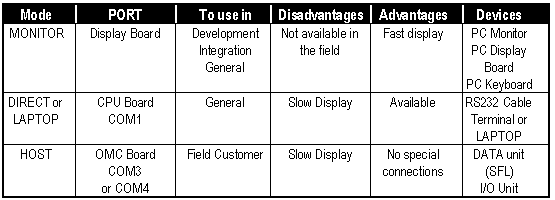
TABLE 1 – DIAGNOSTICS CONFIGURATION MODE
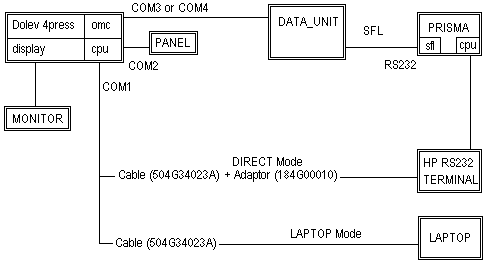
DOLEV 4PRESS DIAGNOSTICS CONFIGURATION MODES CONNECTIONS
| 1-9 | The numeric character that
activates one of the following: BRANCH - name with all capital letters. Test - name with small letters. If the BRANCH is activated the new menu will appear. If the Test is activated the status PASS/FAIL will be appear after the test execution. |
| / | Short Batch operation of a specific sub-menu. |
| // | Long Batch operation of a specific sub-menu. |
| R | (Return) Move to the previous system utilities menu |
| B | (Back) Move up one level in the test tree structure |
| H | (Home) Move to the top level of the test tree |
| Q | (Quit) Quit from the diagnostic program |
| FL | (Loop Flag) For Loop Operation |
| EM | (Error Message) To observe the error message buffer after test/tests failure. Type 'R' to Return to main menu. |
| EE | (Error Buffer) To observe the
error buffer after test/tests failure. Type 'R' to Return to main menu. |
| LO | List Output File (see FI). In DIAG.EXE -> DIAG_OUT.TXT In UTIL.EXE -> UTIL_OUT.TXT * the last executed test has been written to file. |
| LC | List Current Test option lists the help on the active (with arrow on it) test, so user can read about the test without run it. |
| ? | in Utility describes additional options in UTIL handler. |
| FN | SingleStep Flag toggle (see FA). |
| FI | FileOut Flag toggle (see FA). Use LO to see the created file. |
| FO | shOwcode Flag toggle (see FA). |
| FA | Assistance Flag is been now
widely used by the program, so some important results can be displayed, even the test
PASS. Example: DcVoltage Test with the FA (Flag Assistance option) will dispaly all power supplies results on the screen. Perform: FA <CR> FN <CR> x <CR> to run the test which index is x. Because of the single line use for Assistance results, for the test with several results use "FN" - SingleStep Flag, or "FI" - Flow to Disk flag. Note that "FN" or "FI" flags are active only when combined with "FA" or "FO" flags. |