Home | Contact Us | Submit Troubleshooting Info | Search | Help


    Output | Software Solutions | Proofing | Color, Screening and Calibration | Scanning | Digital Photography | Consumables | POS


Lotem 400/800 Family - Saving Log files


Product

 
  • Lotem® 400
  • Lotem 400 Xpose
  • Lotem 400 Quantum
  • Lotem 800
  • Lotem 800 II
  • Lotem Quantum Spectrum
  • Lotem 800 Spectrum
  • Lotem 850

Background


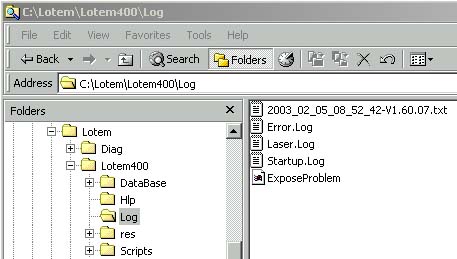
The following log files are saved automatically in the Log folder:

  • Error.Log
  • Laser.Log
  • Startup.Log

This procedure describes how to save log files manually.


Procedure

 
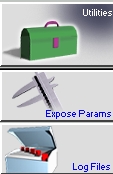
  1. Select Utilities>Log Files.

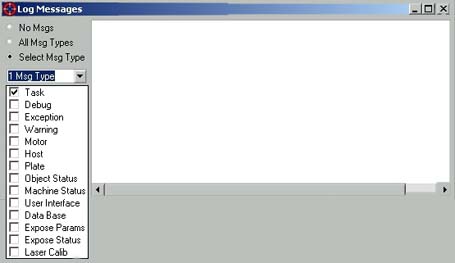
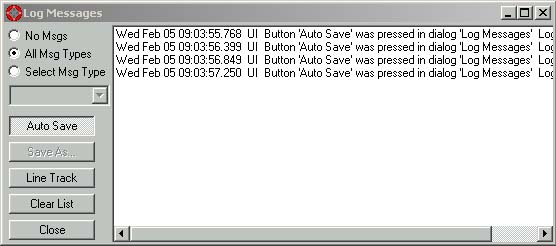
  2. In the Log Messages dialog, select one of the following checkboxes:
    • All Msg Type—to record all tasks
    • Select Msg Type—to record a specific task

  3. If you selected Select Msg Type, check the specific message type from the list.
  4. Save the log files as follows:
    • Auto Save—saves the txt file with the date and the version number on it
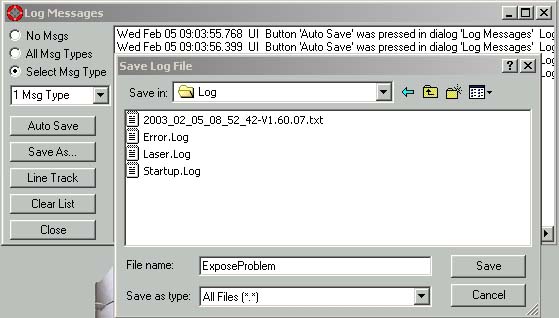
    • Save As...—allows you to save the file as a txt file with a descriptive name under C:\Lotem\Lotem400\Log.

Log files are saved under C:\Lotem\Lotem400\Log:


Technical contact(s)
 

Content owner: Mario Amir
See the Escalation page for escalation contacts.

Date submitted
 

13 Feb 2003


Popups / Tool Tips for this Page

   Close this popup...   Check for and resolve the following, if required:


Popups / Tool Tips for this Page

   Close this popup...

  1. Pump filter—clean or replace, if required.
  2. Supply voltage—on the Distribution box, on the connector to the pump, measure the supply voltage. If the supply voltage is 208V (phase to phase), replace the pump.

    Copyright © 2005 Creo Inc. All rights reserved. Confidential. Back to top.