

Home | Contact Us | Submit Troubleshooting Info | Search | Help
Output | Software Solutions | Proofing | Color, Screening and Calibration | Scanning | Digital Photography | Consumables | POS
Home | Contact Us | Submit Troubleshooting Info | Search | Help
Output | Software Solutions | Proofing | Color, Screening and Calibration | Scanning | Digital Photography | Consumables | POS
|
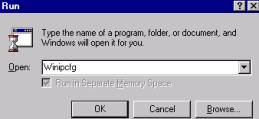
Select Start ,Run |
 |
|
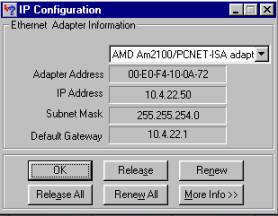
The IP Configuration window will open.Write down the I/P Address Click OK to exit |
 |
At the console login prompt, type cdesci and press <Enter>.
The Brisque prompts you to press <Enter> again to confirm the login; shortly after, message windows appear indicating that the Scitex Servers are being loaded.
If, during the login procedure, a process/application does not load properly or a board is not detected, a results window appears detailing the faults. Click Continue Logon to continue the login procedure (we recommend that you report the problem to your administrator).
When the login has completed, the Brisque Launch Pad is displayed on
the Brisque CDE (Common Desktop Environment).

|
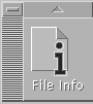
Click the arrow above File Info |
 |
|
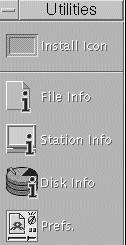
Then click Station Info |
 |
A window will open showing the station name.
Write it down and close the window
From the launch pad, click Scismit->Terminal
A window will open asking for a user name and a password.
Type root in the User field and your password in the Password field (default
ripro) and then press Enter.
A unix dialog window appears with a # command prompt
At the command prompt, type ping and the station name you found before
You will then see the IP address on the first line.
Write it down
Log-in as before
Click the arrow above Scismit
SCISMIT <enter>, PLATESETTER <enter> : tell the Brisque
what IP address to send data
SMIT HOSTS <enter> : assign IP address to a host name
SMIT TCPIP <enter>, MINUMUM CONFIGURATION & STARTUP
<enter> : assign IP addresses to proper network card
a) EN1 - Links to customer's fast Ethernet local area network (100Base-T), which transmits data at speeds up to 100 megabits per second, IP address
b) EN0 - links to the Lotem workstation, standard Ethernet, its baseband transmission at 10 megabits per second (10Base-T), crossover twisted-pair cable, IP address 192.9.100.1
EXIT <enter> : returns to the login prompt.