Lotem 800 Version 3: Troubleshooting Software Logs, Keyboard Shortcuts and
Command Line Arguments
Raphael Sapojnicov
13-Sep-01
Please find hereunder a few tips and short reminders that might be useful during
Lotem remote and on site troubleshooting.
There is no doubt that the Remote Support & Diagnostics will be of help,
and it is recommended to use them as tools to identify symptoms/problems as
fast as possible.
The features you will find hereunder are only available with the Lotem ver.
3 and above:
Keyboard shortcuts in Lotem applications (case insensitive):
Ctrl + M Minimize the application (window).
Ctrl + C Close all open windows in the Lotem application.
Ctrl + D Set the property value to default while editing a value in the hardware
properties
dialog/table.
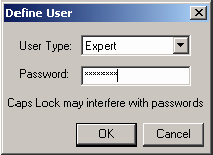
Ctrl + U Define the User as Expert (for the H/W Registry permissions).
Command line arguments (case sensitive): -s Do not display the splash screen during the application launch.
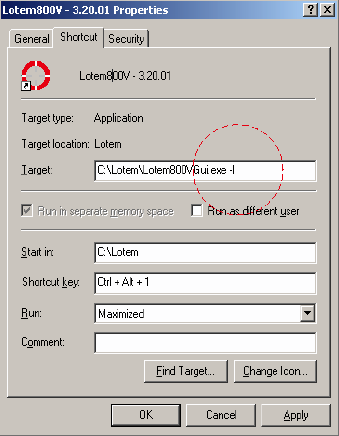
-l Automatically log all startup events to a file with a unique name under
the Log directory.
Startup LOG - The start up log is available and will be captured as
a new log file (under the
Lotem/Lotem800/Log) every time the Lotem application will start up. In order
to activate this
function you have to add the -l to the Lotem application Icon under Properties.
Note: During the startup you can see the Board Loading sequence running
on the bottom left
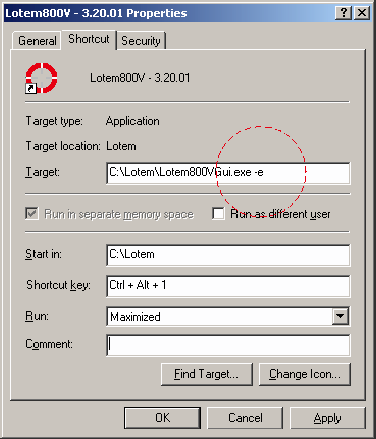
corner. In order to skip this screen you can add the –e command or to
press ESC.
Please remove / do not leave the –e argument option at the end of the
troubleshooting.
Application Log files are available under C:/ Lotem/Lotem800/Log : a. Error log (recording all the Machine messages and enable access to
the machine errors list even after the machine reset).
b. Laser log (laser calibration values per diode – recorded with every
laser group calibration).
c. Startup log.
d. Log file – log messages recording the machine sequences/performance
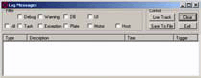
with reference to the engineer defined filters.
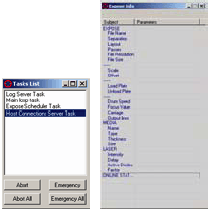
In the Lotem application: Task list & Log file windows, Expose parameters,
etc.
VersionInfo folder / text file (C:/ Lotemxxx or Windows registry).
Registry utilities application (C:/Lotem/Util) – The application ExamDiff.exe
will enable easy comparison between two windows registries.
Note: It’s possible to open/edit the registry file as a text.