wat-rss.creo.com supports Austria,
Belgium, Bulgaria, Croatia, Czech Republic, Denmark, Finland, France, Germany,
Hungary, Iceland, Italy, Lithuania, Norway, Poland, Portugal, Russia, Slovakia,
Spain, Sweden, Switzerland, the Netherlands, and United Kingdom.
her-rss.creo.com supports Cyprus,
Egypt, Ethiopia, Israel, Jordan, Kyrgyztan, Lebanon, Malta, Martinique, Morocco,
Nigeria, Saudi Arabia, South Africa, Tunisia, Turkey, United Arab Emirates,
and Uzbekistan.
Viewing the FCO Tracker via Remote Service Support
Select one of the RSS servers from the RSS servers list,
according to the location of the customer.
Use your Web browser to load the required RSS server, or click the appropriate
server link from the RSS servers list.
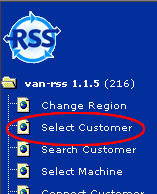
In the left pane of the browser window, click Select Customer:
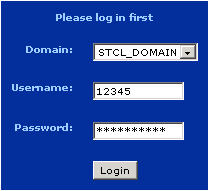
You will be requested to log in.
Log in as follows:
From the Domain list, select the required domain.
Enter your user name in the Username box.
Enter your password in the Password box.
Click Login:
When the Welcome message appears, click Continue.
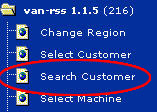
In the left pane of the browser window, click Search Customer:
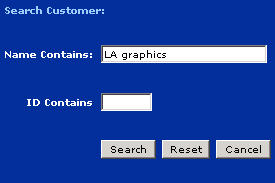
The Search Customer dialog box appears.
Enter the customer’s name in the Name Contains box
and then click Search:
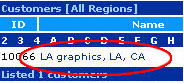
The search results appear in the browser’s main pane:
In the Name column, click the customer’s name. The
browser’s main pane displays the list of platesetters located at the customer’s
site.
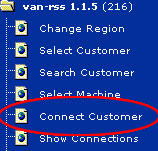
In the left pane of the browser window, click Connect Customer:
The browser’s main pane displays the connection methods.
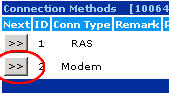
In the Next column, click the appropriate connection method:
The browser’s main pane displays the active connections.
Wait until the Status column displays Connected
and then click on the customer’s name:
The browser’s main pane displays the list of platesetters located at the
customer’s site.
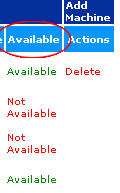
In the Available column, make sure that the platesetter
is available. You will not be able to continue if the platesetter is unavailable:
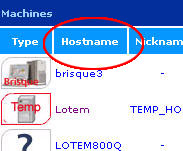
In the Hostname column, click the platesetter you wish
to view:
The browser’s main pane displays the selected platesetter’s details.
If the platesetter has Creo Service Port (CSP) installed, continue below,
otherwise skip this step and proceed to step 13. Note: CSP is automatically installed
on platesetters running Windows 2000.
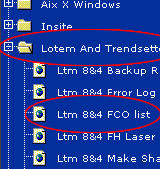
In the left pane of the browser window, select Lotem and Trendsetter
and then click FCO list:
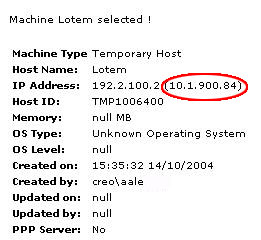
Select and copy the IP address that appears in parentheses:
Open Windows® Explorer. In the Address
box, type two backslashes \\ and then paste the IP address:
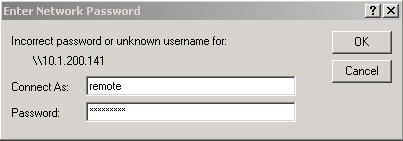
Press Enter on your keyboard. The Enter Network
Password dialog box appears.
In the Connect As box, type remote. In the
Password box, type sciremote, and then click
OK:
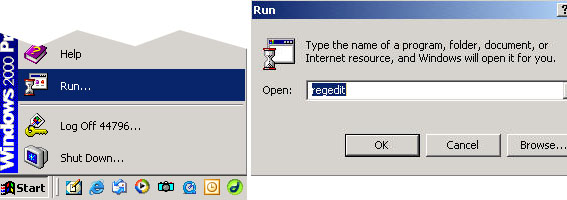
On your local computer, click Start and then select Run.
The Run dialog box appears.
In the Open box, type regedit and then click
OK:
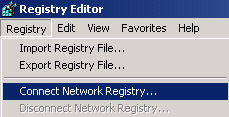
The Registry Editor window appears.
From the Registry menu, select Connect Network
Registry:
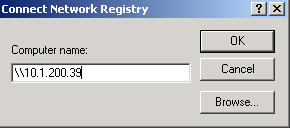
The Connect Network Registry dialog box appears.
In the Computer name box, type two backslashes \\
followed by the customer’s IP address:
Click OK. The customer’s registry files appear on your
local computer.
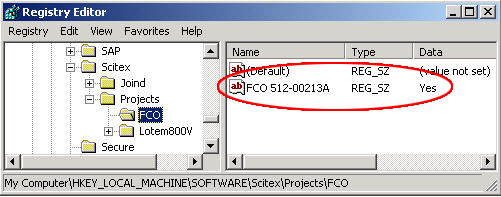
Locate HKEY_LOCAL_MACHINE\SOFTWARE\Scitex\Projects\FCO.
A list displays all the FCOs that have been implemented on the customer’s
platesetter:
When you have finished viewing the list, disconnect from the customer’s
site as follows:
Close the Registry Editor dialog box.
Close Windows Explorer.
In your Web browser, make sure you can view the RSS site.
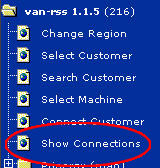
In the left pane of the browser window, click Show Connections:
The browser’s main pane displays the active connections.
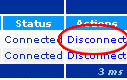
In the Actions column, click the Disconnect
link associated with the customer’s site: