Home | Contact Us | Submit Troubleshooting Info | Search | Help


    Output | Software Solutions | Proofing | Color, Screening and Calibration | Scanning | Digital Photography | Consumables | POS


Configuring an MCEDevice (MCE CTP Controller Electronics) connection on Magnus 200 and Magnus 400 platesetters


Product

 
  • Kodak® Magnus™ 200 platesetter
  • Kodak Magnus 400 platesetter
  • Kodak Magnus 400E platesetter

Background


To accommodate network and dial-up alignment, the network and dial-up connection on all Magnus 200 and Magnus 400 platesetters should be configured as MCEDevice (MCEW CTP Controller Electronics) and not <Unauthenticated User>.


Procedure

 
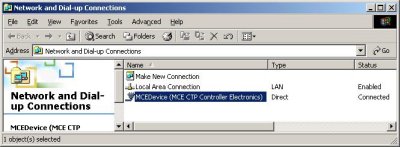
  1. On the desktop, right-click My Network Places and select Properties.
  2. If an MCEDevice (MCE CTP Controller Electronics) connection appears in the Network and Dial-up Connections window, the connection is configured correctly. Quit this procedure and continue working with the platesetter.


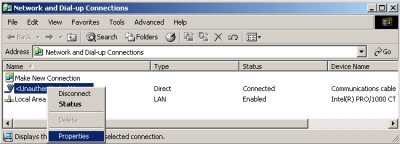
  3. If an MCEDevice (MCE CTP Controller Electronics) connection does not appear in the Network and Dial-up Connections window, right-click <Unauthenticated User> and select Properties.


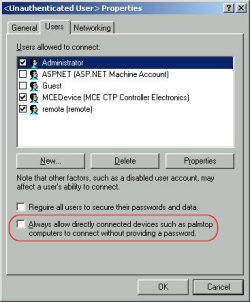
  4. In the <Unauthenticated User> Properties dialog box, on the Users tab, clear the Always allow directly connected devices such as palmtop computers to connect without providing a password. check box and click OK.


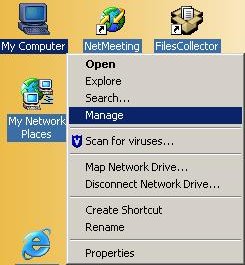
  5. On the desktop, right-click My Computer and select Manage.


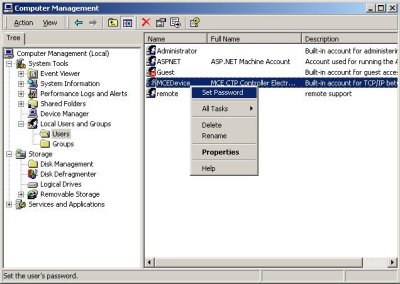
  6. In the Computer Management window, in the Tree pane, select Local Users and Groups > Users, and then in the right pane, right-click MCEDevice and select Set Password.


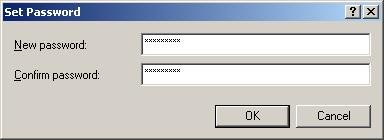
  7. In the Set Password dialog box, in the New password box, type Creo1Spot and then in the Confirm password box, type it again and click OK.


  8. Close the Computer Management window.
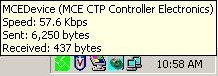
  9. Restart the computer and verify that the MCEDevice (MCE CTP Controller Electronics) connection appears in the Network and Dial-up Connections window and in the notification area, at the far right of the taskbar.


Technical contact(s)
 

Content owner: Ido Regev
See the Escalation page for escalation contacts.

Date submitted
 

18 Jun 2007


    Copyright © 2005 Creo Inc. All rights reserved. Confidential. Back to top.