Home | Contact Us | Submit Troubleshooting Info | Search | Help
Output | Software Solutions | Proofing | Color, Screening and Calibration | Scanning | Digital Photography | Consumables | POS
Home | Contact Us | Submit Troubleshooting Info | Search | Help
Output | Software Solutions | Proofing | Color, Screening and Calibration | Scanning | Digital Photography | Consumables | POS
Product |
|
|
Kodak® Magnus™ 400 Quantum |
|
Background |
|
|
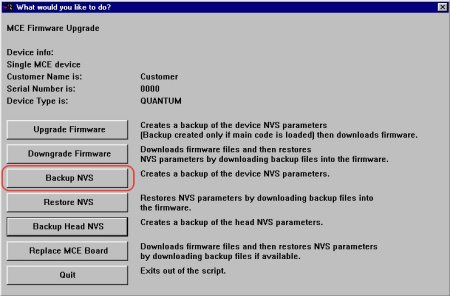
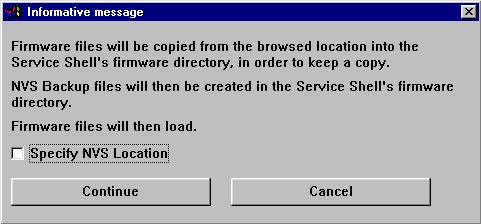
This procedure describes how to save and restore the nonvolatile storage (NVS) parameters installed on the platesetter. |
|
Procedure |
|
|
To save the NVS parameters:
To restore the NVS parameters:
|
|
Technical contact |
Content owner: Mario Amir |
|
Date submitted |
10 Apr 2007 |