Home | Contact Us | Submit Troubleshooting Info | Search | Help


    Output | Software Solutions | Proofing | Color, Screening and Calibration | Scanning | Digital Photography | Consumables | POS


Using the Output Devices Installation Report Tool


Product


All Kodak® output devices


Background


The Installation Report Tool, installed on every Kodak output device, enables field engineers to provide installation feedback to Kodak; for example, customer details, device details, and specific information unique to each installation.
The report’s contents provide Kodak with an invaluable tool for streamlining the installation procedure, improving product design, and increasing awareness regarding installation issues.


Requirements


The output device must be connected to the customer network and have an outbound FTP access via the Internet.


Procedure


How to Open the Installation Report Tool

Double-click the Installation Report Tool icon, located on the Desktop.


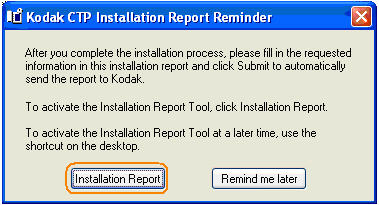
Alternatively, select either Installation Report Tool in the Start menu, or click Installation Report in the Kodak CTP Installation Report Reminder dialog box.


Note: The Kodak CTP Installation Report Reminder dialog box is only generated when either a report has not been submitted, or 10 days have elapsed since the installation.

How to Complete the Installation Report


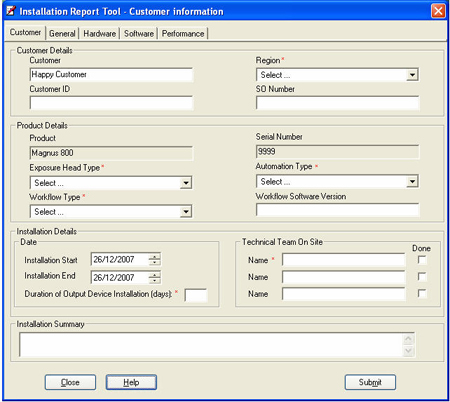
  • Enter information in all mandatory boxes (marked *)
  • The information in the Customer and Serial Number boxes is automatically filled in according to the Registry and cannot be edited.
  • The field engineer must enter information in all five tabs (Customer, General, Hardware, Software, and Performance) before the report can be submitted.
  • Click Close to close the report without submitting it. The report can be completed at a later time.

Submit the Installation Report to Kodak

When all the information has been entered into the report, click Submit.
The report, together with a compressed version of the latest Backup and Restore contents (C:\Creo\BART), is sent to Kodak.
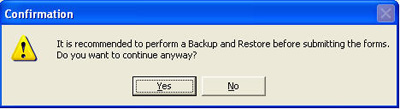
Note: If the latest Backup and Restore is older than four days, the following message is generated:


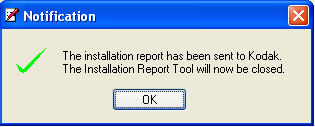
When the report has successfully been submitted, a notification message is generated, and the Installation Report Tool’s shortcuts are automatically removed from the Desktop and Start menu.


Troubleshooting

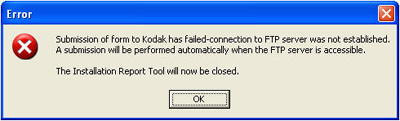
If the output device is not connected to the customer network and does not have an outbound FTP access via the Internet, the report will not be submitted and the following error message is generated:


For 30 days after receiving the error message, the Installation Report Tool will attempt to submit the report each time Microsoft® Windows® is restarted.


Technical contact
 

Content owner: Ido Regev
See the Escalation page for escalation contacts.

Date submitted
 

31 Dec 2007


    Copyright © 2005 Creo Inc. All rights reserved. Confidential. Back to top.