MAC - SciNet (PTOP)
Software
Installation & Configuration
Follow this procedure to install
the SciNet/LAN software:
- Switch on your Macintosh
computer.
- Verify that the LANC/Mac board
is connected to the network.
- Insert SciNet/LAN Installer
disk 1 in the floppy disk drive.
The Finder displays the following window:
- Double click the SciNet/LAN
script icon,
The installer displays a welcome message.
- Click Continue to begin
installation.
NOTE: If the hard disk named is not the one on
which you wish to install the SciNet/LAN
software, click Switch Disk. Each time you click
this button, the hard disk name changes.
The Installer displays the Easy Install window.
- Click Install.
- If there are any open
applications, let the Installer quit them.
If you have any other open applications, the
Installer displays this dialog to ask you if you
want to quit them:
Click Continue. The Installer
automatically quits all the open applications.
- Follow any on-screen
instructions.
The Installer starts to install all the software
you need for SciNet/LAN and displays its progress
with the following dialog:
When the Installer asks you to insert a disk,
insert it.
To stop the installation at any point, click the
Cancel button. The installer leaves your disk
untouched.
When the installation is complete, the Installer
displays the following dialog:
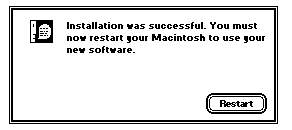
- Click Restart.
The installer restarts your Macintosh. After the
restart, the SciNet LAN software may display this
dialog:
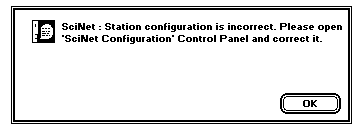
Next, configure your Macintosh computer to be a
station on the SciNet/LAN.
What Files are Installed
The table below describes where the
Installer places the SciNet/LAN software. Note that the Control
Panels, Extensions, and SciNet Files are
folders within the System folder, and that Diagnostic
is a folder within the SciNet Files folder.
SCINET
FILES
|
| Folder |
Files |
| Control Panels |
SciNet
Configuration
|
| Extensions |
SciNetLook
(Chooser extension) |
| |
Shared
Library Manager |
| |
Thread
Manager
|
| SciNet Files |
Diagnostic
(folder) |
| |
NetiosCh4 |
| |
RemTrCopy |
| |
SciNet
Sharing |
| |
SciNetCopy |
| |
SLibCmTools |
| |
SLibCnfg |
| |
SLibNet |
| |
SLibPtop |
| |
TrnFlRecv |
| |
TrnFISend
|
| Diagnostic |
DiagLanc
(application) |
| |
Inc_mac.out |
| |
PtopPing
(application) |
| |
TestLanc
(application) |
| |
TraceView
(application) |
Whisper, PS/2, MAC stations on
the Scinet will be automatically recognised by your
ScinetSpanPro & Profile applications.
After installing the Scinet Boards
and ScinetLan 1.3 for Nubus or ScinetLan 2.0 for PCI,
Your MAC will automatically recognise the stations on the
network and manage a dynamic list of Scinet stations. The
dynamic configuration will be active only after Scinet
Configuration control panel has been configured.
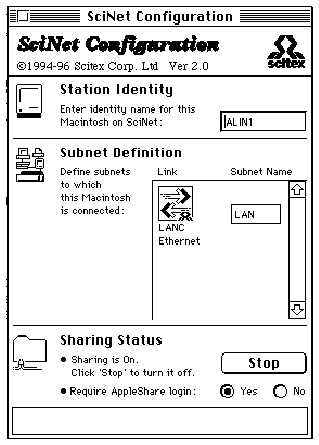
Scinet
Configuration control panel
- Enter the MAC station name in
the station identity field
- Enter the Subnet name in the Subnet
Definition field
- Press on the Start
button to start file sharing for the Mac.
Ripro Server, Brisque will be
configured and recognised by ScinetSpanPro & Profile
applications.
After Scinet Configuration control
panel is configured and you gain access to the Scinet
network, you might want to configure a Ripro Server or
Brisque for your Mac to access.
The Ripro Server And the Brisque
should be configured as static stations since no
publishing of the station identity is done by them and a
constant list should be maintained for this stations.
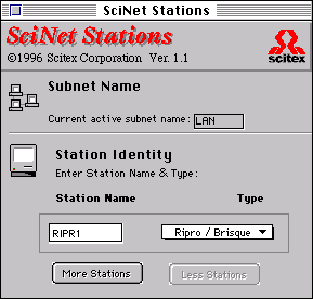
Scinet
Station Control Panel
Active SubNet is automatically
received by Scinet Station Control Panel from the Scinet
Configuration Control Panel.
- In the Station Name
field type the remote station name.
- In the TYPE field
select type from drop down list.
Recommendation
- configure only Ripro or Brisque as static in
this Control Panel!
PROBLEM
After restarting my Mac, I see the
following message:
"SciNet: Subnet [subnet
name]. This subnet cannot be used because no Ethernet
connection was found. Please check that the board is
connected to the network."
SOLUTION
- Make sure that the LANC board
is properly installed in your Mac.
- Make sure that the Ethernet
cable is properly connected to the LANC board.
- Make sure that the Ethernet
cable is in good working condition.
- Run the LANC diagnostic
application to verify that the LANC board is
functioning properly.
- Reinstall the SciNet
Installer, as there may be a defective Ethernet
driver in the system.
PROBLEM
I cannot see any subnet name in the
SciNet applications.
SOLUTION
- Verifv that the subnet name is
configured properly in the SciNet Configuration
control panel.
- If you are using an INIT
manager--such as Startup Manager or
INITPicker--make sure that all the files that the
SdNet Installer installs on your Mac (see SciNet
Files) are in
the appropriate folders.
PROBLEM
I cannot see any stations in the
SciNet applications, and SciNet-Look.
SOLUTION
- Make sure the other SciNet
stations are switched on, and that the proper
application is running on each station.
- Restart your Macintosh.
- Make sure your Macintosh is
physically connected to the other SciNet stations
(Whisper, PS/2* and other Macintosh computers).
- Make sure that the logical
subnet name on all the SciNet stations is the
same. Note
- Make sure you are not
connected to your other SciNet stations through a
router.
NOTE: The SciNet stations
can be connected through hubs, switching hubs, bridges,
repeaters, etc., but not through routers.
PROBLEM
I can see some SciNet stations, but
can't see a specific one.
SOLUTION
- Make sure that the remote
SciNet station is switched on, and that it is
running the correct application.
- Check the configuration on the
remote SciNet station.
- Make sure that your Mac and
the remote SciNet station are not connected
through a router.
- Check the cable which is
connected to the remote SciNet station. Do this
by trying to connect the remote SciNet station to
another SciNet station, preferably one that your
Mac is connected to.
IMPORTANT: Make sure that
the logical subnet name is the same, both on your Mac and
on the remote SciNet station.
PROBLEM
I cannot establish a connection
from the PS/2* to the Macintosh to set an APR path.
SOLUTION
- On the Macintosh, open the
SciNet Configuration control panel, and make sure
that SciNet Sharing is On
- Make sure your logical subnet
name is the same on the PS/2* and the Macintosh.
- Make sure that the Macintosh
station name that you configured on the PS/2*
(through sciutil) is the same name you gave to
that Macintosh through the SciNet Configuration
control panel on the Macintosh.
- Make sure your rS/2* is
physically connected to the Macintosh, and not
through a router.
PROBLEM
My Macintosh hangs when I work with
the SciNet applications.
SOLUTION
- Restart your Macintosh. Open
the Memory control panel and make sure that
Virtual Memory is Off and that 32-bit addressing
is On.
PROBLEM
I can see and connect all my SciNet
stations, but I'm getting a very poor data transfer
performance.
SOLUTION
- Close all open control panels,
as well as any CPU time-consuming application.
- The load of the remote SciNet
station--disk activities and CPU time--may affect
the performance of data transfer.
- If you are using one segment
of an Ethernet line (rather than a switching hub
configuration), simultaneous data transfer on the
same segment may significantly affect the
performance.
- Defective hardware--bad
cables, faulty hub repeaters, loose cable
connections--even though you may be able to
connect between the stations, can affect the data
transfer rates.
- Disk access speed--use a disk
utility package to check your hard disk access
speed. A slow or very fragmented hard disk may
cause poor file transfer performance.
NOTE: The SciNet
applications are very friendly; for example , they can
run in the background and can simultaneously copy more
than one file using several SciNet applications. Because
of this, any non-friendly open application may affect
data transfer performance. For instance, any open control
panel may cause the Finder to grasp a considerable amount
of CPU time.
PROBLEM
SciNet/LAN crashes or Macintosh
freezes. SciNet Span and Profile cannot run on a
Macintosh with system labeled with a Z.. (for example,
System Z-7.1).
SOLUTION
- Install a regular release of
System 7.1 or 7.5.
PROBLEM
Quadra 840AV with regular System
7.1 crashes after SciNet/LAN installation. There is a bug
in Apple 'System Enabler 088' file.
SOLUTION
- Replace 'System Enabler 088'
file to a more recent enabler. You can get it
from Apple with 'System Update 3.0.'
PROBLEM
SciNet/LAN stops working after
loading System 7.5. SciNet Configuration control panel
was moved from the Control Panels folder.
SOLUTION
|

