Home | Contact Us | Submit Troubleshooting Info | Search | Help


    Output | Software Solutions | Proofing | Color, Screening and Calibration | Scanning | Digital Photography | Consumables | POS


How to create a symbolic link on Brisque or Timna servers for Services for UNIX (SFU)


Product

  Brisque, Timna, Prinergy, NFS, SFU

Problem

  You want to use Brisque and Timna exports in Prinergy input volumes.

Solution


To use Brisque and Timna exports in Prinergy input volumes, they must only be one level deep for a share. This means that you must create a symbolic link that shows only //SERVERNAME/SERVERNAME.1.0. To create a symbolic link:

  1. Install and configure SFU in the normal way.
  2. Cut and paste the following text (between the asterisks) into a Notepad doc file.
    ***************************************************** Windows Registry Editor Version 5.00 [HKEY_LOCAL_MACHINE\SOFTWARE\Microsoft\Client for NFS\CurrentVersion\Default] "DisplayAllLinks"=dword:00000001 "MountSymlinkTargetShare"=dword:00000001 *****************************************************
  3. Save the file as SymLinks.reg and merge the file into your registry.
  4. Stop and restart the Client for NFS. If you have a window open or a drive already mapped, it may not stop. If this is the case, dismount the drive or close the open window. You can also locate the process ID and stop the nfsclnt.exe task, however this method is not as safe as the others.
  5. The ln -s command creates a symbolic link to a folder that can then be exported. You must have root privileges to do this. Open a command prompt, telnet into the Brisque or Timna server, and execute the following:

    D:> telnet brisque1
    login: root
    root's Password: ripro
    # cd /
    # ln -s /dataVolumes/brisque1.1.0 brisque1.1.0
    # cd brisque1.1.0
    # ls
    .Desktop Prinergy_Input RIP100_PROOF RIP80_PROOF lost+found
    .rsrc RIP100 RIP80 brisque1.1.0
    PROOF_DROP RIP100_EXPOSE150 RIP80_EXPOSE133 jobs
    # cd /
    # pwd
    /
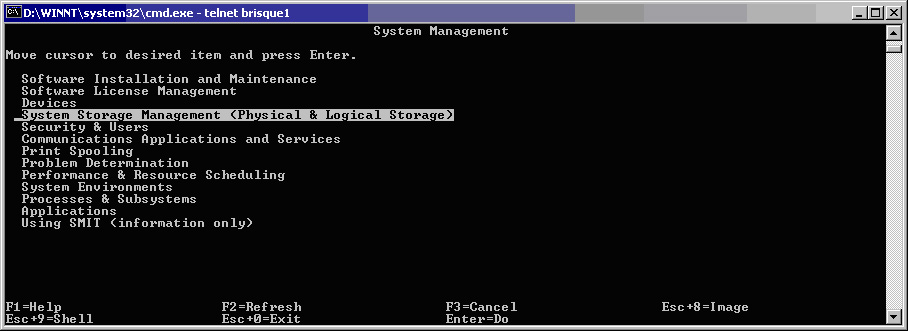
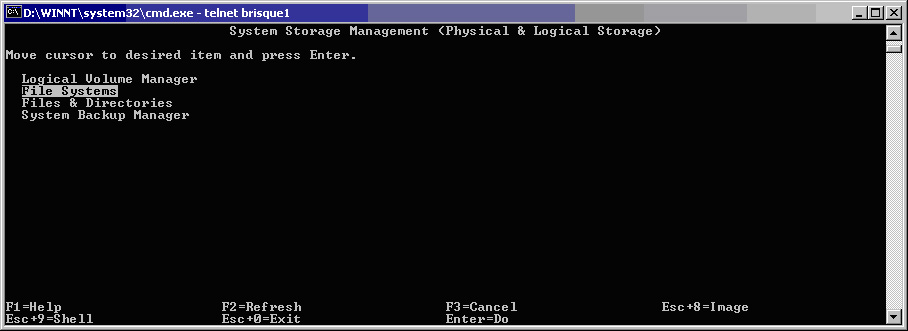
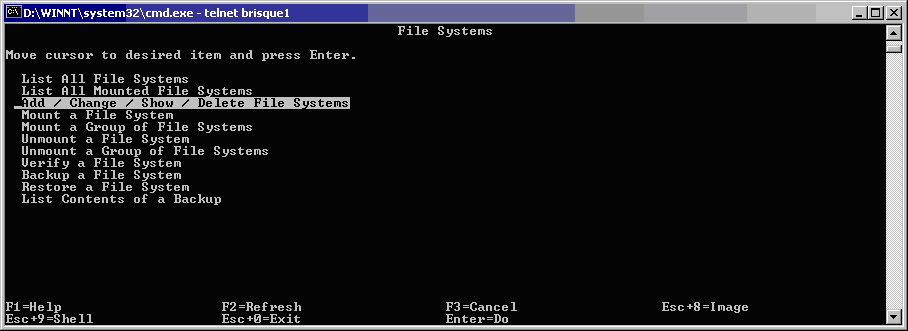
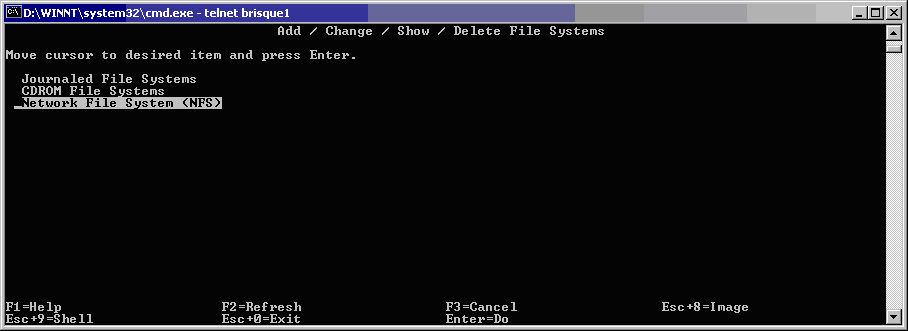
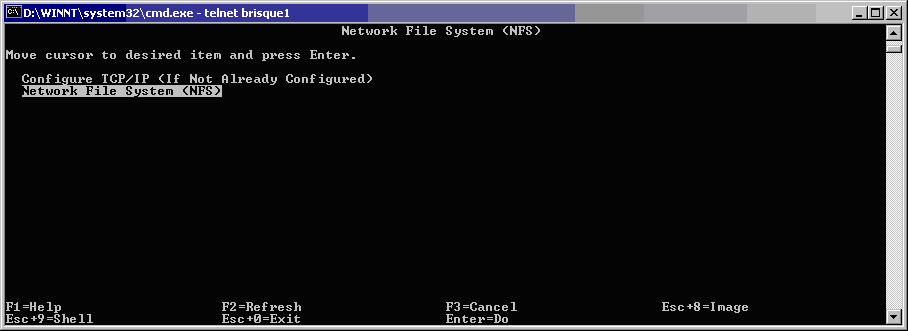
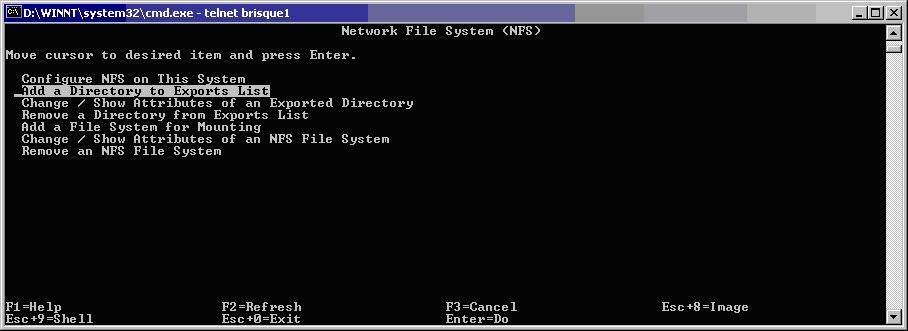
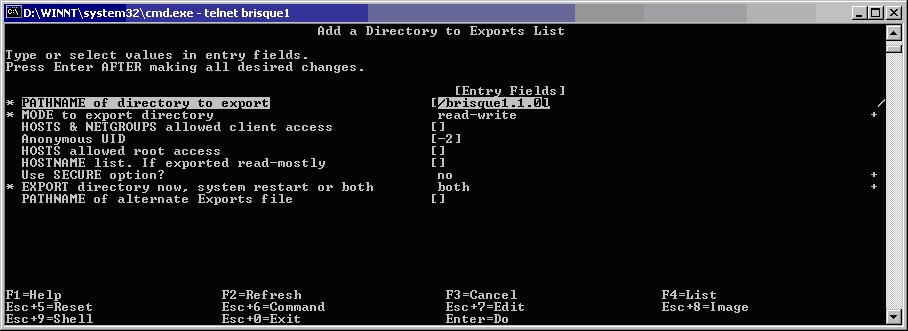
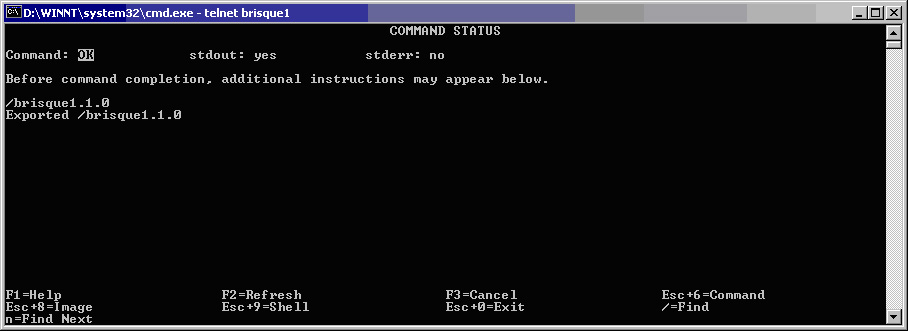
    # smit


  6. Press Esc 3 <- to exit current window (instead of F3)
  7. Press Esc 0 <- to exit SMIT
  8. Exit <- to terminate telnet session

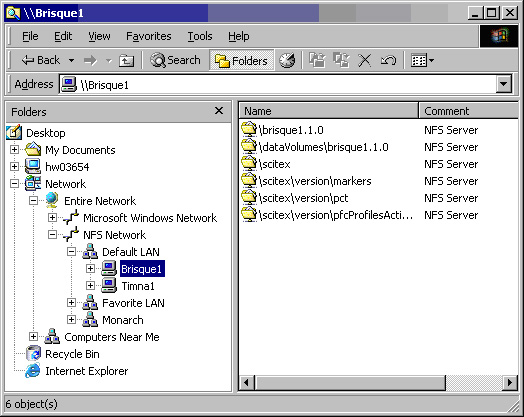
Now when you browse in Windows, you will see the following:


The " \brisque1.1.0" volume can now be added as an input volume in Prinergy.


Technical contact(s)
 

Philip Samaniego

Submitted by
 

Philip Samaniego

Date submitted
  06 Oct 2006

    Copyright © 2005 Creo Inc. All rights reserved. Confidential. Back to top.