Home | Contact Us | Submit Troubleshooting Info | Search | Help


    Output | Software Solutions | Proofing | Color, Screening and Calibration | Scanning | Digital Photography | Consumables | POS


Norton AntiVirus Zip Overhead Fix


Product


Norton AntiVirus (NAV)


Operating System


Windows 2000


Symptoms


A problem has been found when NAV is configured to scan Zip files. When NAV encounters a Zip file it will decompress the file to the temp folder. Some files tend to be quite large and the overhead in performance and space can cause problems for some systems.


Solution


To eliminate this issue Creo recommends disabling the automatic scanning of Zip files from both the Realtime and Weekly scan settings in NAV. This is considered low risk for the following reasons.

  • Without special software, files cannot be run from a Zip file. If a file cannot be executed, it can not be spread. Certain Zip tools such as WinZip will allow a program to be run from inside a Zip file but the software will actually decompress the code first to a temp location which then follows the standard rules to automatically check with Realtime Scan.
  • Copying Zip files that may contain viruses will not infect a computer. The virus code must be decompressed first.

To Disable the Scanning of Zip Files in NAV:

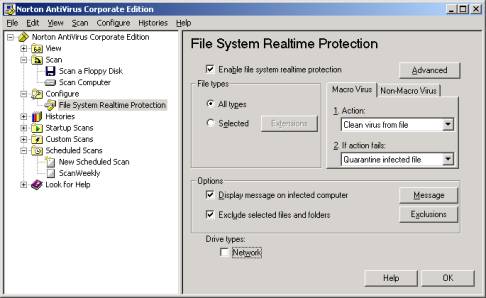
  1. Open up Norton AntiVirus. You should see the following:

Change Realtime Protection Settings.

  1. Select Configure >File System Realtime Protection.
  2. Under Options, select Exclude Selected Files and Folders, and then click the Exclusions button.
  3. Select Check file for exclusion before scanning, and then click the Extensions button.
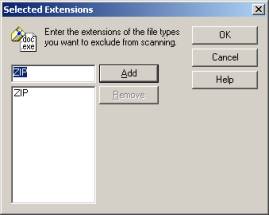
  4. Type ZIP, and then click Add. You should now have the following displayed:

  5. Click OK on the Selected Extensions window, and then click OK again on the Exclusions window.

Change Scheduled Scans Settings.

  1. Select View > Scheduled Scans.
  2. For each scheduled scan listed do the following.
    1. Select the scan (that is, ScanWeekly), and then click Edit.
    2. Select Options.
    3. Select Exclude Selected Files and Folders, and then click the Exclusions button.
    4. Select Check File for Exclusion Before Scanning, and then click the Extensions button.
    5. Type ZIP, and then click Add.
    6. Click OK on the Selected Extensions window, click OK on the Exclusions window, click OK on the Scan Options Window, and finally click OK on the Scan window.
    7. Select the next scheduled scan and repeat from step a.

3) Exit the Norton AntiVirus CE window.


Technical Contact(s)
 

Derek Braendel


Submitted by
 

Richard Simms


Date Submitted
 

30 Oct 2002


    Copyright © 2005 Creo Inc. All rights reserved. Confidential. Back to top.