Home | Contact Us | Submit Troubleshooting Info | Search | Help


    Output | Software Solutions | Proofing | Color, Screening and Calibration | Scanning | Digital Photography | Consumables | POS


How to generate an AIT drive diagnostic long report (nori trace)


Description

 This procedure describes how to generate an AIT drive diagnostic long report (nori trace) using the Sony Tape Tool utility.

Products

 AIT drives, Sony Tape Tool

Symptoms

  You want to generate an AIT drive diagnostic long report (nori trace).

Solution

 
  1. If you don't already have it, download and install the Sony Tape Tool utility.
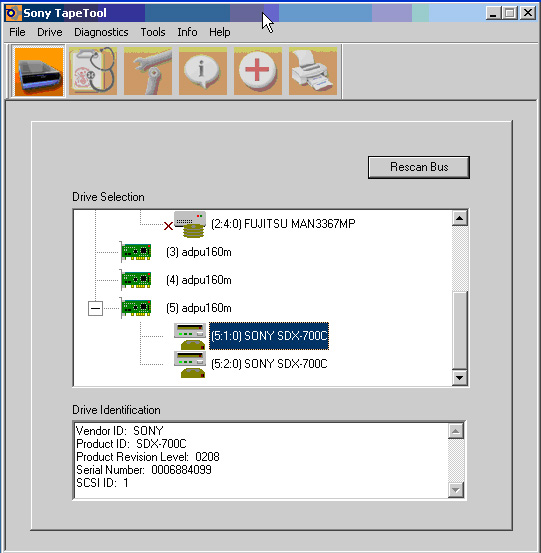
  2. Start the Sony Tape Tool. A list of installed SCSI devices will appear. If the tape drives are not shown, you may need to disable the tape drive using RSM and initiate a Rescan Bus using the Sony Tape Tool.
  3. In the Drive Selection window, click to highlight the drive to be diagnosed. Drive information is shown in the Drive Identification window.


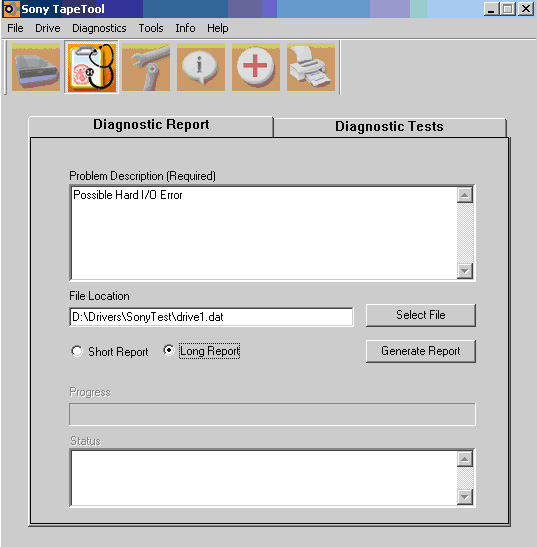
  4. Click the Diagnostic and Report icon:
  5. In the Diagnostic Report window, enter the problem description (for example, Possible Hard I/O Error) to enable the window buttons and fields.


  6. Click Select File and select the folder to which you want to write the report. Enter the file name to use.
  7. Select Long Report.
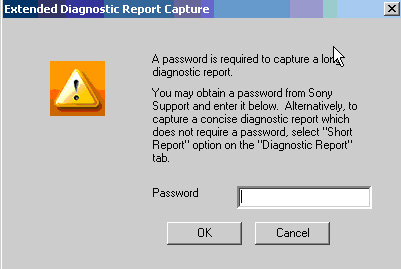
  8. Click Generate Report. A password dialog box appears.
  9. Type ynos, then click OK.


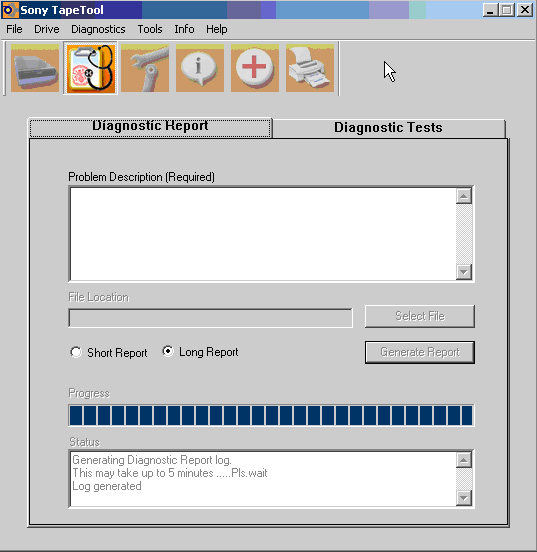
  10. Wait for the diagnostic report to complete (this may take a couple of minutes). The Sony Tape Tool may seem to freeze while the report is being generated. The following screen capture shows the completed log generation.


  11. Select the next drive, if required, and repeat steps 3 to 10.

Technical Contact(s)
 

Philip Samaniego


Submitted by
 

Philip Samaniego


Date Submitted
 

23 Mar 2006


    Copyright © 2005 Creo Inc. All rights reserved. Confidential. Back to top.