Home | Contact Us | Submit Troubleshooting Info | Search | Help


    Output | Software Solutions | Proofing | Color, Screening and Calibration | Scanning | Digital Photography | Consumables | POS


How to update LTO3 firmware


Description

 How to update LTO3 firmware.

Products

 IBM LTO (Linear Tape Open) Tape Library

Symptoms

  You want to update LTO3 firmware.

Solution


LTO3 Firmware Update Procedure
  1. Verify that there are no Archive or Backup/Restore jobs running or queued on the tape drive.
  2. Stop Archive JTP.
  3. Stop and disable the Removable Storage Management (RSM) service.
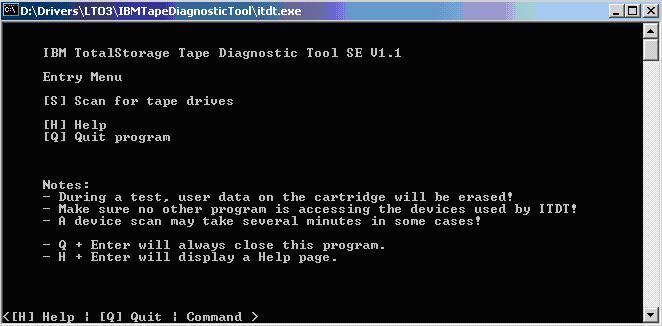
  4. Run the IBM Tape Diagnostic Tool (itdt.exe). You can download it from the IBM Support Site.
  5. In the Entry Menu, type S to scan for tape devices.


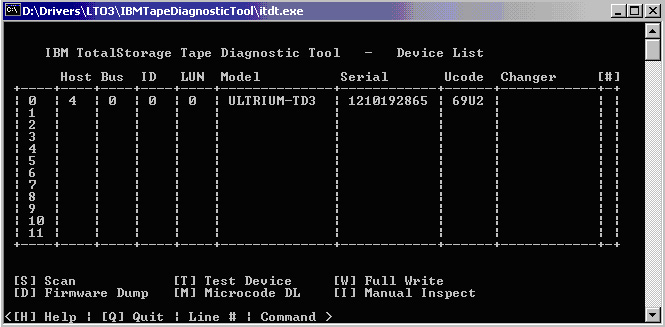
  6. The Device List window appears.


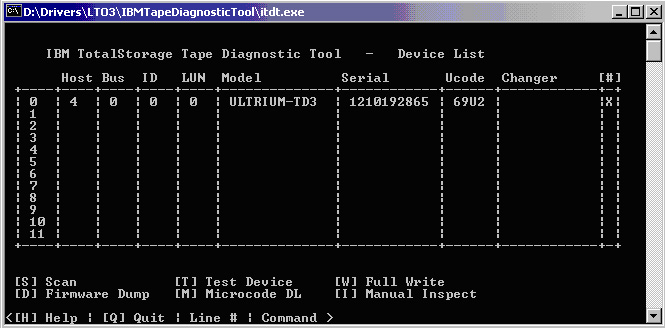
  7. Select the drive you want to update by typing the left-most number in the drive row and pressing Enter. In this example, 0 was selected. An X will appear in the # column.


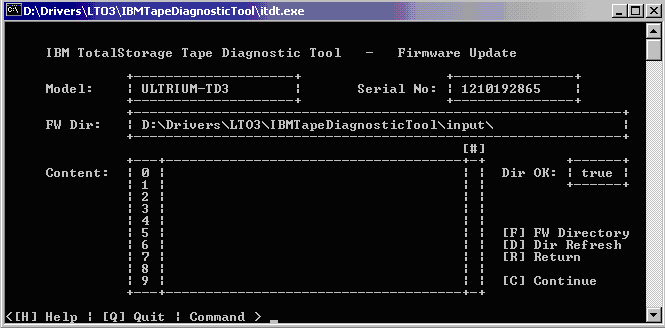
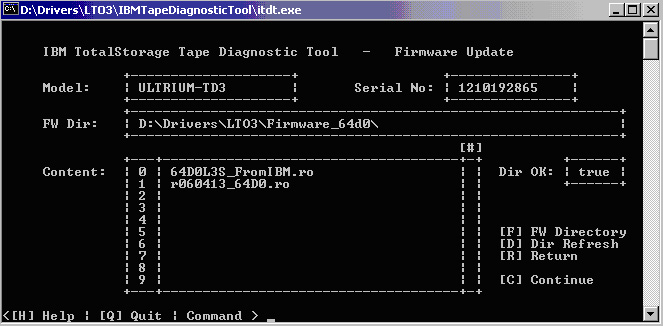
  8. To select Microcode DL, type M. The Firmware Update window appears.


  9. To change the FW Directory (FW Dir) to the location of the new firmware, type F < path >.


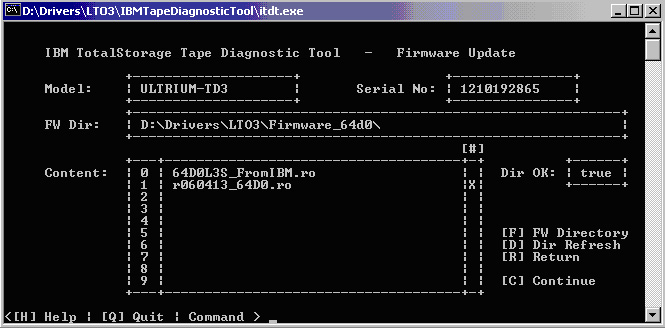
  10. Type the line number of the new firmware. In this example, 1 was selected. An X will appear in the # column.


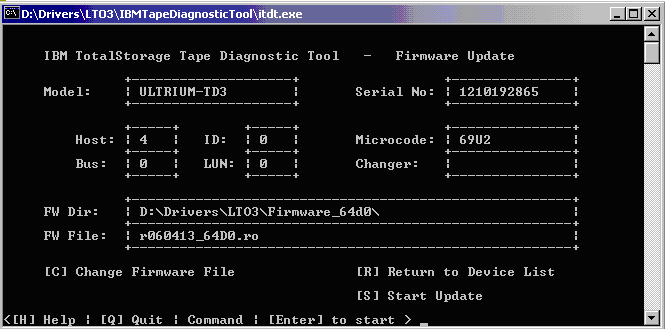
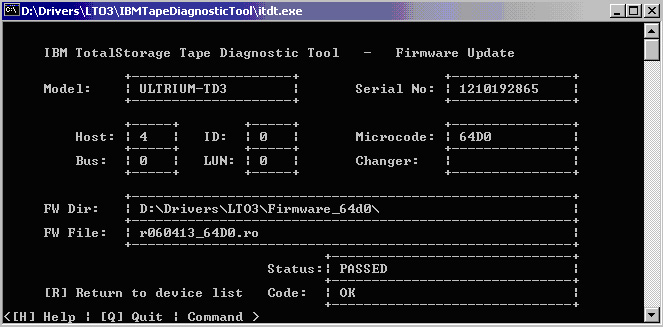
  11. Type C to continue. In the window below, verify that the information is correct. Continue only if the information is correct.


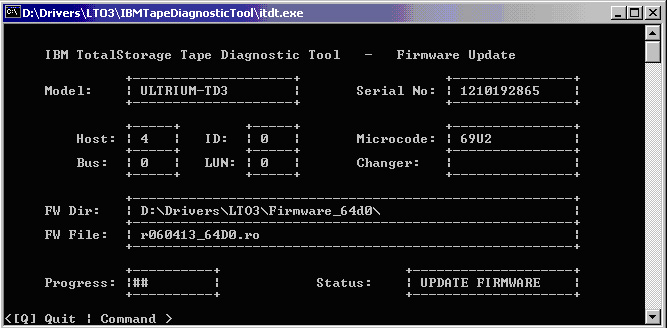
  12. Type S to start the update. Do not cycle the power on the tape library/drive while the update is in progress. Progress refreshes to show the status of the update.


  13. When the firmware update is finished, Status and Code will indicate PASSED and OK respectively.


  14. Type q to exit.

Technical Contact(s)
 

Philip Samaniego


Submitted by
 

Philip Samaniego


Date Submitted
 

11 Apr 2006


    Copyright © 2005 Creo Inc. All rights reserved. Confidential. Back to top.