Home | Contact Us | Submit Troubleshooting Info | Search | Help
Output | Software Solutions | Proofing | Color, Screening and Calibration | Scanning | Digital Photography | Consumables | POS
Home | Contact Us | Submit Troubleshooting Info | Search | Help
Output | Software Solutions | Proofing | Color, Screening and Calibration | Scanning | Digital Photography | Consumables | POS
Question: |
How do I reflect spot colors as marks in my job? |
Explanation: |
The Generic CreoScitex Spot marks facilitates the use of Spot Colors in marks, without the need of creating a different set of Spot Colors marks for each particular job. |
Solution: |
The following will explain how to use your own custom set of spot marks. These marks are stored in the Marks Library and can be used repeatedly . |
Workflow: |
To create your own custom spot color marks, follow the instructions detailed here. First, prepare the Marks on the Mac, and then complete the procedure by adding the Spot Marks to the Marks Inventory from the Brisque. |
Important notes: |
|
Add the mark (in the eps format) to the Preps Marks Library. You can also add the mark as a "Dup" mark by adding it to the Dup folder and then restarting Preps.
The Spot marks must be copied to the Marks Library of the Brisque. You can do this by:
Before using a Generic Spot Mark, you must determine how many Spot Color separations must be present in the Mark. The number of Spot Color separations that must be present in the Mark does not have to be equal to the total number of total Spot Color separations in the entire Job. Rather, the number of Spot Color separations that must present in the Mark must be equal to (or larger) than the highest number of Spot Colors used in any one of the Layouts in the Imposition Job (if the Imposition Job has a single Layout then the number of Spot Colors must equal or be larger than the total number of Spot Colors for the entire Job).
The linkage between the actual Spot Colors in the Imposition Job and the Spot Colors in the Generic Spot Mark is performed via the reserved SBI codenames. The Brisque analyzes the color information contained in the Mark, and if the Mark contains the reserved SBI(n) codenames, the data for the associated Spot separation is applied to each Spot Mark.
The reserved SBI(n) base codenames contained in a Mark are automatically recognized by the Brisque and are linked to the Spot Color(s) contained in the Imposition Job per Layout.
The SBI separations are linked to the Spot Color (per Layout) according to the alphabetical order of the Spot Colors (priority is given to numbers, upper case, and lower case, in this order). Therefore, the actual color for each Spot Mark may change for each Layout.
If a Layout contains fewer Spot Colors than the number of SBI separations present in the Generic Spot Mark, then the additional Spot patches will be printed as empty patches.
Warning:
If the Layout contains more spot colors than the number of SBIs defined by the Generic Spot Marks, the Expose and FlatExpose Output operations will fail. This is because the Brisque is unable to match the Spot Colors to the Generic Spot Marks in the Layout.
The Color Policy defined for Spot Colors (on the Brisque) does not apply to these Generic Spot Color Marks. It is assumed that the data needed for all the separations will be defined in the mark, therefore when a SBIn mark contains data, none of the color data is duplicated, and all the separations will be output.
If you do not wish to have the Varnish and Base colors treated as Spot Colors, within a Generic Spot Mark containing SBI separations, you must give the Varnish separation the "_Varnish" suffix. Similarly, give the Base separation the "_Base" suffix. When the Brisque identifies these suffixes, it does not relate to them as Spot separations, and does not insert them into the SBI patch.
A Imposition Job with 3 layouts is created via Preps and sent to the Brisque to be translated.
The entire Imposition Job (see below) contains all 4 CMYK separations plus 4 additional Spot Colors (Orange, Red, Blue and Green). Layout #1 and Layout #2 contain one Spot Color that is common to both of them (Orange). Layout #2 contains two other Spot Colors that are unique to that Layout (Blue and Green). Layout #1 contains another Spot Color that is unique to that Layout (Red). Layout #3 does not contain any Spot Colors:
Layout
Spot Colors in Layout
Layout 1
Orange, Red Layout 2
Orange, Blue, Green Layout 3
None
Example: Imposition Job with 3 Layouts, including 4 Spot Color separations .
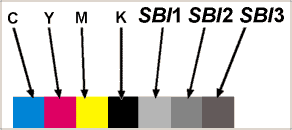
Since the highest number of Spot Colors in any of the Layout for the entire Imposition job is three, a Generic Spot Mark with three Spot separations was chosen. The Spot separations in this Mark were named according to the SBI naming convention as SBI1, SBI2 and SBI3. This Generic Spot Mark also included CMYK Color separations. The identical Generic Spot Mark is applied to all three Layouts.
The Generic Spot Mark chosen for this Imposition Job contains CMYK Color separations and three SBI separations.
For each Layout, the Imposition independently associates the 3 SBI separations in the supplied Generic Spot Mark to the 3 Spot Colors as follows (notice how the SBI naming convention operates according to the alphabetical hierarchy of the Spot Color, and how the SBI Mark files change color per Layout):
Layout |
Spot Colors in Layout |
|
Layout 1 |
Orange, Red | SBI1 Mark data in Orange separation SBI2 Mark data in Red separation SBI3 Empty patch (no Spot Color for this Spot separation)
|
Layout 2 |
Orange, Blue and Green | SBI1 Mark data in Blue separation SBI2 Mark data in Green separation SBI3 Mark data in Orange separation
|
Layout 3 |
No Spot colors | SBI1, SBI2 and SBI3 - Empty patches (no Spot
Colors for these separations)
|
Once created, this Generic Spot Mark (with the CMYK Color separations) can be reused for any Imposition Job that has 3 or less Spot Colors in any one Layout. The SBI patches are automatically updated to match the existing Spot Colors (independently per Layout).