Home | Contact Us | Submit Troubleshooting Info | Search | Help


    Output | Software Solutions | Proofing | Color, Screening and Calibration | Scanning | Digital Photography | Consumables | POS


Brisque Impose Application Note #9
Page Remake Cycle

Question:

How do I replace individual pages from within an Imposition Job?

Explanation:

When corrections need to be made to individual PostScript files that have already been ripped, re-printing and re-RIP the PostScript file is a very time consuming job, especially if it is very large.

Solution:

There are four ways that you can do this:

The following outlines the basic page remake cycle for all four possibilities:

  1. Make the corrections to the pages in your document.
  2. Print the pages to a file of a different name(s) than the original file.
  3. RIP the file(s) on the Brisque, making sure that they are RIPped at the same LW resolution of the original pages.
  4. Replace the corrected pages. The three ways described here differ in the source and the application that is used to replace the corrected page.

Via the Imposition Check application:

  1. Drag and drop the Imposition Job on the ImpoCheck icon; the Imposition Check window opens.
  2. Select the Pages checkbox, then click OK; the Imposition Check Results window opens.
  3. Click the Pages button; the Pages window is displayed.
  4. Select the page you want to replace.
  5. Click the Selection button; a browser opens.
  6. From the browser, select the new RIPped page.
  7. Click OK, and exit the Imposition Check application.

Via the Assembly application:

  1. Drag and drop the Imposition Job on the Assembly icon; the Assembly application with the Imposition Job is displayed.
  2. Toggle to the Layout which contains the page you want to replace.
  3. From the Layout Display areaOR the Page list, select the page; the page in the Display area and in the Page list is highlighted.
  4. From the Assembly window, click the Replace button; a browser window appears.
  5. From the browser, select the new RIPped page.
  6. Save the Imposition Job.

Via the Job Editor

  1. Mount the Brisque volume where the pages reside on the Macintosh.
  2. Double click on the Job Editor icon.
  3. an09_01.gif (480 bytes)

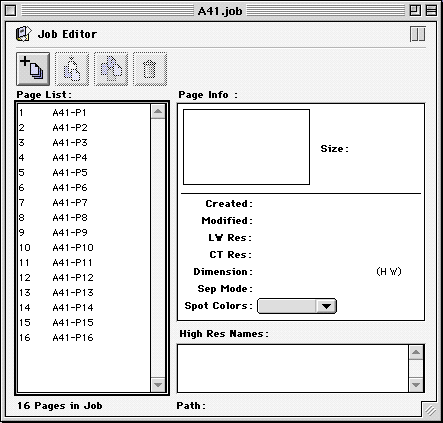
  4. Choose Open from the File menu or click zO, the choose will appear. Navigate to the Brisque volume and select the original job that needs to be "remade", the Job Editor dialog will appear:
  5. an09_02.gif (11228 bytes)

  6. Click once on the page that you wish to replace.
  7. Choose Replace from the Page menu or click the Replace Icon.
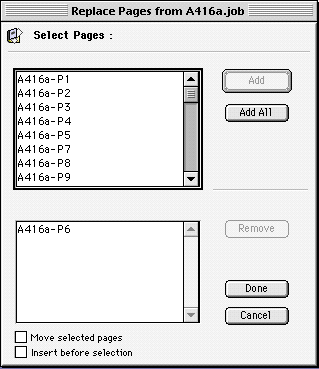
  8. The chooser will appear. Select the Job that contains the corrected pages. When the Job is selected,  the Select Pages dialog will appear:
  9. an09_04.gif (8081 bytes)

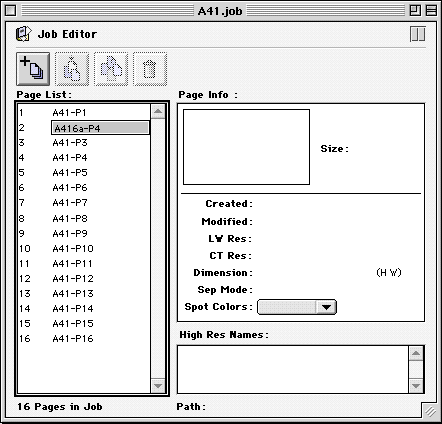
  10. Click on the page in the upper window to select, click and done. The Job Editor dialog will re-appear:
  11. an09_05.gif (11260 bytes)

  12. Double-click on the page that was replaced. Enter the name of the original.
  13. Repeat the procedure to replace additional pages.
  14. Choose Save from the File menu or zS. The job will be updated.

Recreating the Preps ICF

  1. From the Mac terminal, open the Preps application.
  2. Open the Preps job.
  3. From the Run list, delete the page you want to replace.
  4. Drag and drop the CreoScitex page on the Run list into the position of the previously deleted page.
  5. Select a new page.
  6. Save the job and print the ICF.

    Copyright © 2005 Creo Inc. All rights reserved. Confidential. Back to top.