SciNet Configuration
for Brisque or CreoScitex Ripro Server or Scitex Ripro Archiver
Power on the Station and login as root.
At the UNIX prompt (#) type scismit and press Enter.
Execute the sequence Communication and Servers-> Scinet-> Scinet Configuration->
Local Station-> Change/Show/local station name.
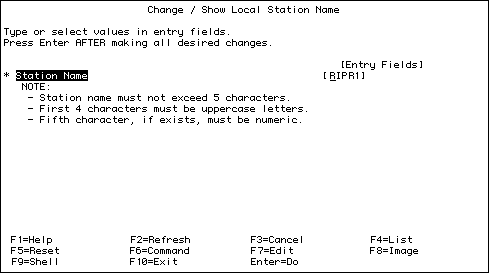
The Change/Show local station name window appears.
The default station name appears (RIPR1) in the Station Name field.
Change the station name according to the instructions on the
window, or leave the default name; press Enter in either case in order to continue.
The Command Status window displays OK for a
successful execution.
Select [F3] to return to the SciNet Configuration
menu.
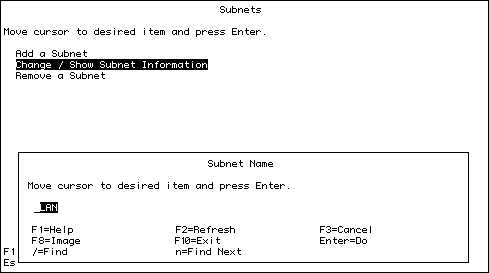
Execute the sequence Subnets-> Change/Show Subnet
Information.
Ensure that under the Subnet Name window, LAN
appears (this is the default, but it may need to be changed according to the site
configuration).
Press Enter.
The Command Status window displays OK for a
successful execution.
Select [F3] to return to the SciNet Configuration
menu.
Execute the sequence Subnets-> Change/Show Subnet Information.
Ensure that under the Subnet Name window, LAN
appears (this is the default, but it may need to be changed according to the site
configuration).
Press Enter.
The Command Status
window displays OK for a successful execution.
Select [F3] to return to the SciNet Configuration
menu.
Exit SciSmit.
PTOP runs only
when the CreoScitex application is up.
SciNet Configuration on the
Mac
Refer to CreoScitex
Doc# 771-50159A, SciNet LAN FE Installation, Chapter 3.
Configuring a Brisque,
CreoScitex Ripro Server or CreoScitex Ripro Archiver Volume on the Whisper -
PTOP
From the Menu on the Whisper, execute the
following sequence:
Services-> Configuration-> Network-> LAN.
At the next empty line, add the Brisque or CreoScitex
Ripro Archiver or CreoScitex Ripro Server local station name.
For Station type, use the spacebar or pointer, and
select Ripro.
Press [F1] Save & Exit.
From the Menu on the Whisper, execute the
following sequence: