Intergraph DiskShare v4.0 is an NFS server
package for Windows NT. Microsoft has licensed this product (and others) in
order to create a product called "Windows NT Services for UNIX". This
document explains installation and configuration and assumes the user is
proficient with Windows NT, TCP/IP, NFS and Brisque.
Requirements
The following are required in order to install
and configure the software and obtain optimum results:
Windows NT Server v4.x and Service Pack 3
TCP/IP must be installed and configured on
Windows NT Server
Intergraph DiskShare (for relevant CPU –
Intel or Alpha) and License
Brisque v2.8.50 with UpdNFS3 (part of
UpdScripts) or Brisque v3.0.x
NFS client for AIX v4.2.1.15 (available on ftp
site – included in Upd28)
Overview
The following steps are required to complete
installation and configuration
Set the NT server options
Install the software
Create a translation file
Copy the Brisque’s /etc/passwd and
/etc/group file to the NT server.
Setup UNIX to NT user mapping
Set configuration options
Create shares (NFS exports)
Mount NTFS filesystems on Brisque
Installation Considerations
There are a few important points, concerning
installation and configuration, that should considered prior to commencement.
If NFS export aliases are defined the server
must be rebooted. In order to minimize downtime on the server make sure that
all aliases are defined at one time. To determine whether aliases will be
necessary, please read the section "NFS Export Aliases" before commencing
installation.
If high resolution images for APR will reside
on the NT server, there must be no illegal UNIX characters (such as, ? * /
etc.) or special Mac characters (such as bullets, foreign currency symbols,
etc.) in the directory or file names. Space characters should also be
avoided.
If the customer wishes to define APR search
paths using the Mac Front End’s Template Builder application, Macintosh
volume names must match NFS mount point names exactly.
This means that any Mac (AFP) volume names
defined using Windows NT Services for Macintosh must be valid NFS mount
point names (i.e. no spaces or illegal UNIX characters).
Setting NT Server Options
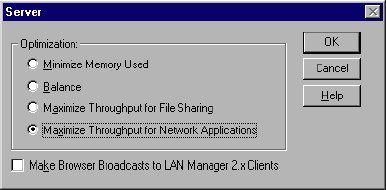
In order to achieve maximum performance, Windows
NT needs to be configured to maximize throughput for network applications.
Login as Administrator
Open the Network Control Panel (Start
Menu . Settings . Control Panel)
From the Services tab select Server and
click Properties
Select Maximize Throughput for Network
Applications, click OK and close the Network Control Panel.
You will be prompted to restart the server –
Click No.
Installation
Login to the NT Server as Administrator
Run the installation program from the
distribution media (e.g. ds4intel.exe)
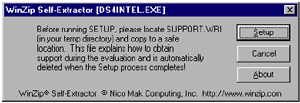
In the WinZip self-extractor dialog click Setup
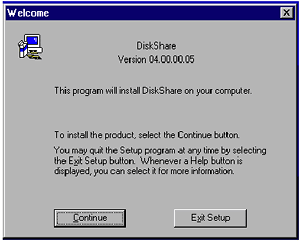
In the DiskShare Welcome dialog, click
Continue
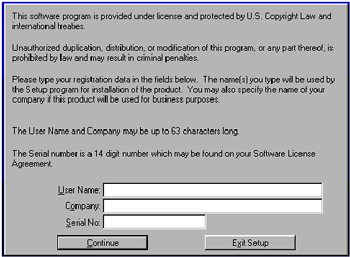
Enter the license information in the
License Dialog and press Continue. Press Continue in the
confirmation dialog that follows.
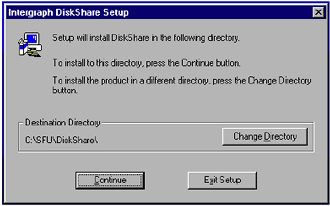
Select the Installation Directory and
press Continue
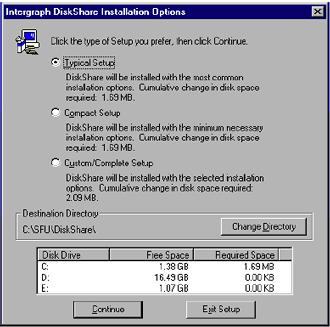
Select Typical Setup from the
Installation Options Dialog and press Continue. The files will be
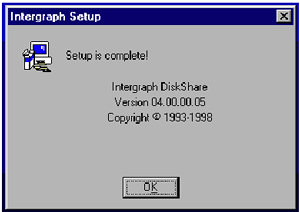
copied to the directory selected and a
completion dialog will be displayed.
Press OK in this dialog and the dialog that
follows (save the serial number warning)
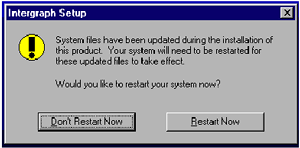
A dialog asking whether to restart now or
later is then displayed. Select Restart Now.
Create a Translation File
Because some Mac and UNIX characters are illegal
on NTFS, Intergraph provides a facility to translate file
names containing illegal characters these to valid NTFS filenames. The most
problematic character is the ":" as
this is used by Helios store special Mac characters in Mac file names so they
are compatible with UNIX. For further
information please see the limitations section.
Create a text file (with notepad) in a
directory on the NT server (we suggest the installation directory,
which defaults to C:\Program Files\DiskShare). See the note on page 9
regarding the translation file path.
Enter the following information on a
single line (everything after the ";" character is a comment):
0x3a : 0x7b ; maps ":" (0x3a) to
"{" (0x7b)
Save the file with a suitable name
(e.g. C:\ Program Files\DiskShare\trans.txt).
Copy passwd and group File to the NT Server
To facilitate mapping of Brisque user and group
names to NT users and groups the /etc/passwd and /etc/group
file should be copied to the NT server. The recommended method is use FTP from
the Windows NT Server (other methods may
cause problems with line endings). Below is an example of the procedure:
Open and MS-DOS shell on the NT Server
Type the following commands substituting
a suitable dataVolume name:
ftp <Brisque IP address> <Enter>
(e.g. ftp 192.9.100.1 <Enter>)
login as root (default password ripro)
lcd c:\winnt\system32\drivers\etc <Enter>
cd /etc <Enter>
ascii <Enter>
get passwd <Enter>
get group <Enter>
quit <Enter>