Brisque; Dolev PS/M - Installing New
Graphics Adaptor (Cat No. 605B00250) Author/Submitter: S. Goldberg
Document Released: 18 June, 1997
Product Family: Front Ends
IBM replaced the Graphics PCI adapter for the E-30. The new
board is called GXT110P and is compatible with the old one, except for the software
drivers that need to be installed. The attached file describes the installation procedure.
Note: There is a certain incompatability between your
previous adapter and the new adapter with regard to the software driver and you may not be
able to use the Brisque terminal to perform the software installation.
The installation can be performed either by remote contact
via Telnet from another station, or by opening a Ripro Terminal on the Mac.
1.1.2 Installation Procedure
Turn system unit power on
Login as root, password Ripro and press Enter.
Insert the device driver CD-ROM into the drive.
Type smit devinst and press Enter.
The Install Additional Software window appears, with
the Input device/directory for software option highlighted.
Press [F4] to display a list of input devices, select
your input device, in this case CD-ROM and press Enter.
The Install Additional Software window appears again with Software to install
field highlighted.
To locate the device driver software, type / to
display the Find window.
Type devices.pci.33531188 and press Enter.
The device driver software is located and highlighted. For Example 4.1.5.0
devices.pci.devices.
Press [F7] to select the software and press Enter.
The Install Additional Software window appears again with the selected data updated
in the text fields.
Press Enter to accept the data.
At the Are You sure window press Enter. The Command Status window appears and displays the status of install and
configure procedure.
At the end of a successful procedure OK appears in the status field.
Remove media from drive.
Press [F10] to exit SMIT.
Proceed to install adapter.
1.1.3 Hardware Installation
Shutdown system unit.
Remove covers.
Note slot number of adapter you are removing.
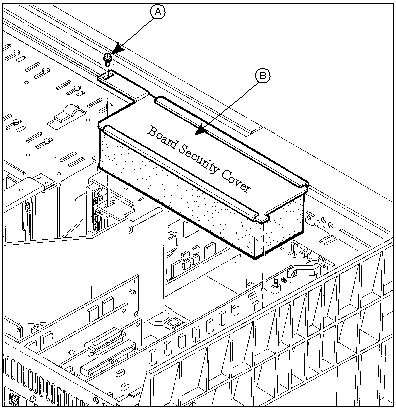
Loosen and remove the screw (A) from the top of the Board
Security cover (B) and remove the cover. Figure 1-1. Remove Board Security Cover
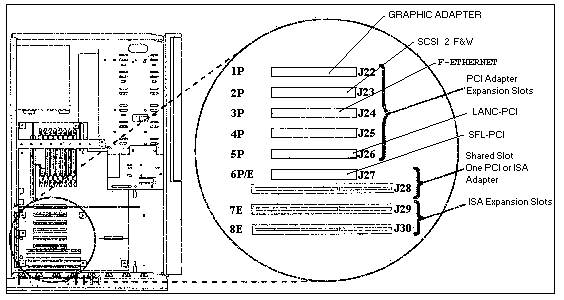
The following table sets out the slot adapter
assignements for the Brisque workstation:
Slot #
Adapter
1P
Graphic Adapter
2P
SCSI-2 F&W
3P
Fast Ethernet
4P
Vacant
5P
LANC PCI (optional)
6P
SFL PCI
Figure 1-2 Slot/Board Allocation
Loosen and remove screw on top of adapter bracket.
Disconnect any internal cables attached to adapter.
Pull adapter out of slot; use one hand for support, the
other to extract adapter.
Insert new adapter, connect internal cables, screw on top of
adapter bracket.
Replace security board cover and screws, replace external
cover.
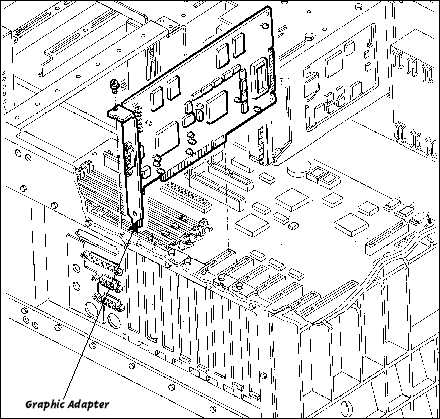
Figure 1-3. Graphic Adapter
Connect all external devices including keyboard and
mouse.
Connect video cable to graphics adapter.
Turn on system unit and display.
1.2 Troubleshooting
Check cables-ensure cables connected to the correct adapter.
If no logon prompt appears, restart system unit
Verify Software Installation
Login as root.
Type lsllp -l all| grep GXT110P and press Enter.
If the device driver is correctly installed, data similar to
this example appears:
devices.pci.33531188.X11 4.1.5.0 COMMITTED AIXwindows GXT110P Graphics.
devices.pci.33531188.diag 4.1.5.0 COMMITTED AIXwindows GXT110P Graphics
Adapter.
devices.pci.33531188.rte 4.1.5.0 COMMITTED AIXwindows GXT110P Graphics.
If the device driver did not install, perform a new device
driver installation.
Verify Software Installation
At the prompt type lsdev -Cs pci and press Enter.
If the adapter was installed correctly, data similar to the
example appears on the screen:
iga0 Available 04-02 GXT110P Graphics adapter.
If the data indicates the adapter is Defined instead
of Available, shut down the machine and verify that the adapter is correctly
installed.
If there is no data message, reinstall the adapter.