

Home | Contact Us | Submit Troubleshooting Info | Search | Help
Output | Software Solutions | Proofing | Color, Screening and Calibration | Scanning | Digital Photography | Consumables | POS
Home | Contact Us | Submit Troubleshooting Info | Search | Help
Output | Software Solutions | Proofing | Color, Screening and Calibration | Scanning | Digital Photography | Consumables | POS
Procedures
Mac Client TCP/IP Procedure
The Mac client for Brisque can connect a Brisque via both
TCP/IP and Apple Events protocols. TCP/IP is highly recommended.
This document aim is to help to configure a TCP/IP connection between a Mac and a Brisque
station.
The document is built of two parts: Mac configuring and Brisque configuring.
The Mac part is part of the Mac OS help. The Brisque part is part of the Brisque manual.
Network Configuration on the Mac
We recommend you first try using the online Mac OS Help from the Main Menu. From the Index menu, select <TCP/IP>. The online help will interactively guide you through the TCP/IP Configuration procedure. If, for some reason, you are unable to use the online Mac OS, follow the instructions below:
If your network uses one of the listed types of server methods, select it from the list. If you already know your IP Address, select Manually, then in theIP Address field type in the IP Address (if you do not know your IP Address, contact your network administrator).
 |
To check the connectivity to the Brisque or any other Mac on the network, use MacPing or any other TCP utility. |
Network Configuration on the Brisque
Setting TCP/IP Parameters
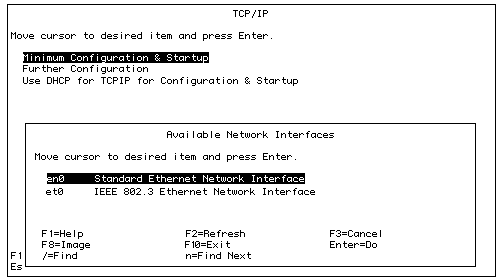
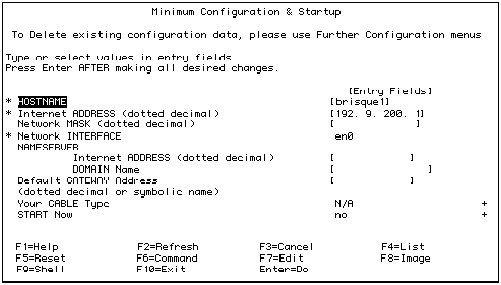
For sites with no Internet connection
The three fields, which are marked with an asterisk on the left hand side, must be filled in.
Hostname Name of station, default CreoScitex name Brisque1
Internet Address Default CreoScitex is 192.9.200.1
Network Interface This comes filled in
from the previous screen
(en0).
For Sites with an Internet Connection
In addition to the above information, additional
information for the following fields must also be supplied by the site administrator.
Network Mask, Name Server (IP address), Domain Name and Default Gateway Address.
The Command Status window will display OK for a successful configuration.
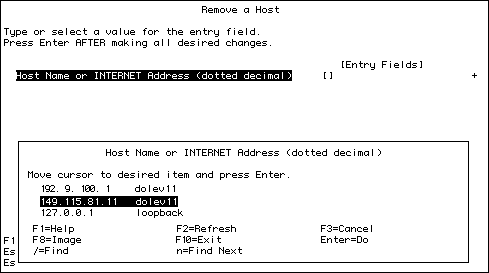
Check Hosts File
To prevent duplication of IP addresses after the IP address has been changed.
If there are more than one entries with different IP addresses for the same host, then the incorrect entries must be deleted.
Network Parameters
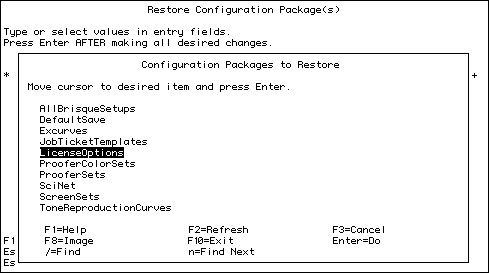
Restore Passwords
Backup and Restore-> Manual Backup and Restore->
Configuration Backup and Restore-> Restore
Configuration from Diskette and press Enter.
This operation restores CreoScitex, AppleShare and Transfer Pro passwords.