Home | Contact Us | Submit Troubleshooting Info | Search | Help


    Output | Software Solutions | Proofing | Color, Screening and Calibration | Scanning | Digital Photography | Consumables | POS


No remote login after PPP installation


Product


Brisque® 5.x

Platform


All Brisque platforms

Operating system


IBM® AIX® 4.3.3, 5.2


Symptoms


After installing PPP using scismit, only the first remote login works, and subsequent remote logins fail.


Cause


If the PPP was installed on more than one Brisque on the site, then when the site is connected with RSS, only the workstation with the modem is listed as available, while other workstations on the network are listed as unavailable. This occurs when more than one system publishes the same IP as scippp.


Solution


2 solutions are possible:

Solution 1:
Several Brisque workstations can have a PPP setup with different IP addresses, so long as every Brisque workstation defines scippp with a different IP address.

Solution 2:
Remove the PPP setup from all Brisque workstations besides the one with the modem. Do the following:

  1. Determine if there is a permanent ARP entry on the system and if it is routing the scippp address back to itself.
    Type: # arp -a
    The following appears: scippp (10.10.10.22) at 0:4:ac:7c:a6:21 [ethernet] permanent published
    ripro2 (10.10.10.206) at 0:4:ac:7c:95:2e [ethernet]
    TAZ (10.10.10.214) at 0:4:ac:7c:95:2d [ethernet]
    ? (10.10.10.118) at 0:b0:d0:dc:c8:28 [ethernet]
  2. Remove the permanent ARP entry from the cache. Type: # arp -d <ip-address>
  3. Edit the /etc/rc.net file using vi to remove the ARP entry from returning on reboot:
    • Type # vi/etc/rc.net
    • Scroll down to the line that you want to remove which is
      # arp -s ether scippp 0:4:ac:7c:a6:21 pub
    • Click dd to delete the line
    • Click Esc once, and type:
      :wq!
  4. Change the PPP configuration so that it is does not start up automatically each time. Use smit:
    • Type # smit
    • Select Communication Applications and Services
    • Select PPP
    • Select Stop PPP
    • Select both in STOP PPP now, system restart or both.
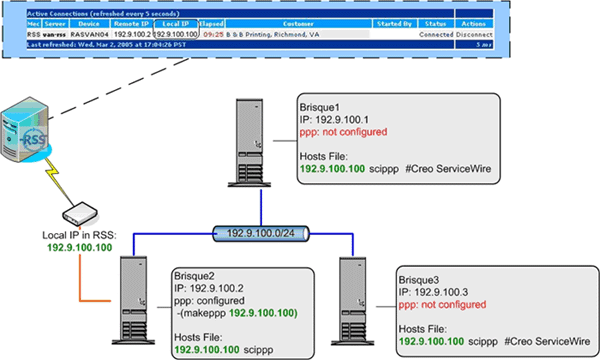
  5. Add the scippp IP address, which is defined on the ppp server (the Brisque with the modem), to the /etc/hosts file (see diagram below):
    • Type # vi /etc/hosts
    • Scroll down to the end of the file (click $G)
    • Click o to open a new line
    • Type <ip-address> scippp
      where <ip-address> is the IP address assigned by the PPP server
    • Click Esc once, and type:
      :wq!

Technical contact(s)
 

Lev Weissman

Submitted by
 

Ido Regev

Date submitted
 

23 Feb 2005


    Copyright © 2005 Creo Inc. All rights reserved. Confidential. Back to top.