Home | Contact Us | Submit Troubleshooting Info | Search | Help


    Output | Software Solutions | Proofing | Color, Screening and Calibration | Scanning | Digital Photography | Consumables | POS


Performance problems with Brisque 5.x online help


Product


Brisque® 5.0/5.1

Platform


All Brisque platforms

Operating system


IBM® AIX® 5.2


Symptoms


You may encounter one or both of the following unrelated problems when opening the Brisque 5.1 online help

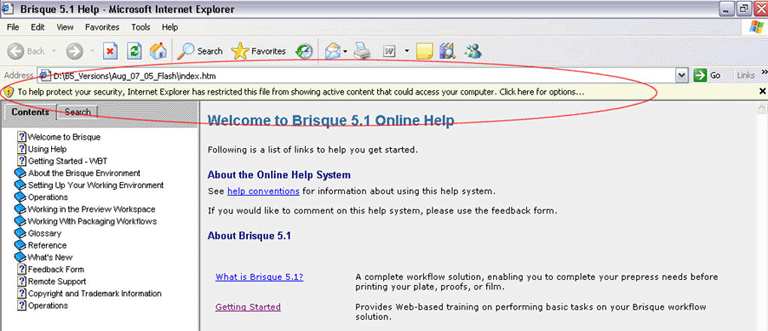
  • Problem 1—online help does not open properly on Windows® XP with service pack 2 and a warning bar appears
  • Problem 2—when Macromedia® Flash® Player 8 is installed, the top and left panes of the online help navigation areas are blank and a warning message appears: Macromedia Flash Player has stopped a potentially unsafe operation

Solution


Problem 1—online help does not open properly on Windows XP with service pack 2:

  1. Click the warning bar that appears.


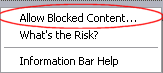
  2. Select Allow Blocked Content from the list.


  3. Click Yes on the Security warning message.

You need to repeat this procedure each time you open the online help. To prevent the warning bar message from reappearing each time:

  1. In your Internet Explorer, select Tools > Internet Options....
  2. In the Internet Options... window, click the Advanced tab.
  3. In the Advanced settings window, scroll to the Security section, select the Allow active content to run in files on my computer check box and click OK.

Problem 2—when Macromedia Flash Player 8 is installed, a warning message appears, and the top and left panes of the online help navigation areas are blank.

To solve this problem you need to change the Global Security Settings of the Flash Player to enable it to revert to earlier security settings:

  1. Click Settings in the warning message, or select Macromedia Flash Player Settings Manager > Global Security Settings directly from the Flash Player software.
  2. In the Global Security Settings window, click the Edit locations list, and select Add location.
  3. Click Browse for folder.
    On a Windows client: navigate to the
    C:\Program Files\BrisqueClient\version\help folder that contains the help.
    On a Macintosh® client: copy and paste from the bottom part of the window or type the following path into the Trust this location: box /Applications/BClientosx.app/help
    Note: On a Macintosh client, you cannot browse to the folder location. The Flash Player 8 problem occurs on the Macintosh client, regardless of whether the help opens in Internet Explorer or Safari™.
  4. Click Confirm and close the Flash Player Global Security Settings Panel.
    The Always trust files in these locations area in the Macromedia Flash Player Settings Manager displays the path of the online help.
  5. Refresh the online help window. The top and left panes appear correctly.

Technical contact(s)
 

Eran Tadmor

Submitted by
 

Eran Tadmor

Date submitted
 

20 Feb 2006


    Copyright © 2005 Creo Inc. All rights reserved. Confidential. Back to top.