

Home | Contact Us | Submit Troubleshooting Info | Search | Help
Output | Software Solutions | Proofing | Color, Screening and Calibration | Scanning | Digital Photography | Consumables | POS
Home | Contact Us | Submit Troubleshooting Info | Search | Help
Output | Software Solutions | Proofing | Color, Screening and Calibration | Scanning | Digital Photography | Consumables | POS
Product |
Pandora® all |
||
Operating system |
Windows® 2000 |
||
Symptoms |
Complete Title: Pandora hardware key (dongle) is not recognized; uninstalling an incorrect Rainbow iKey driver on Windows 2000 If the correct driver for the hardware key is not installed, Pandora indicates the hardware key cannot be found. |
||
Cause |
The installation procedure was not followed correctly. Pandora is a hardware-key protected application. The iKey™ USB® hardware key requires the iKey driver. This driver should install automatically when you install the software. However, sometimes there is a problem with the iKey driver installation on Windows 2000 systems because there are still references to a previously installed driver present. This can happen if the hardware key is inserted prior to the correct driver being installed. If that happens, Windows 2000 assigns a different, incorrect driver to the hardware key. |
||
Solution |
Before reinstalling the iKey driver, you must remove all references to previous drivers. At this time, you must manually uninstall the driver to obtain a clean system. To uninstall the incorrect Rainbow iKey driver:
 Click to enlarge 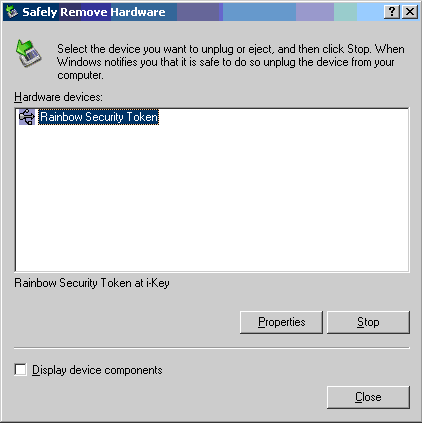 Click to enlarge 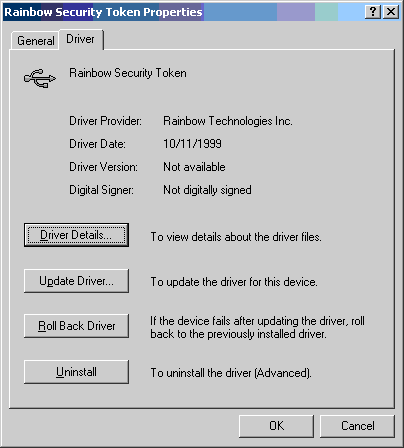 Click to enlarge |
||
See also |
|||
Technical contact(s) |
|||
Submitted by |
|||
Date submitted |
15 May 2001 |
||