Home | Contact Us | Submit Troubleshooting Info | Search | Help
Output | Software Solutions | Proofing | Color, Screening and Calibration | Scanning | Digital Photography | Consumables | POS
Home | Contact Us | Submit Troubleshooting Info | Search | Help
Output | Software Solutions | Proofing | Color, Screening and Calibration | Scanning | Digital Photography | Consumables | POS
|
|
||
Product |
Kodak® Prinergy®, all versions up to and including 3.1.0.x | |
Platform |
Dell or Data General |
|
Operating system |
Windows 2000 |
|
|
|
||
Error |
|
|
|
|
||
Symptoms |
When Prinergy starts, the Prinergy Disk Monitor displays the warning message. |
|
|
|
||
Cause |
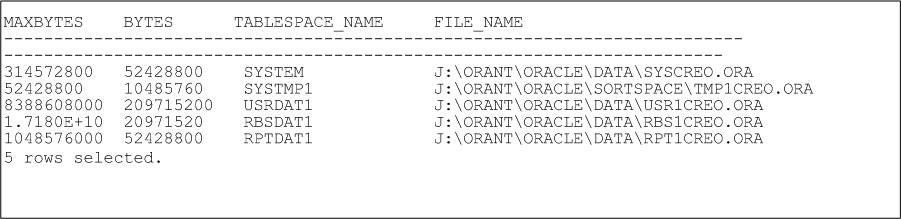
The Prinergy Disk Monitor software checks the database size and disk space size. TMP1CREO.ORA file: A warning message about this file means that the temp tablespace has at some point used up the maximum amount of bytes allocated to it, even though the information in the temp tablespace gets cleaned out when Oracle restarts. The datafile stays at the largest size that it has grown to. The database reports normally use the most space in the temp tablespace because they generate reports for all the jobs in the database. If you see messages in the creoALRT.log file indicating that it couldn't allocate extents in the SYSTMP1 tablespace, then you must expand the tablespace. |
|
|
|
||
Solution |
Extend the table by running the following commands in Oracle® Server Manager. Note: You do NOT need to shut down Prinergy or the database to perform this procedure. Note: Only increase the TMP1CREO.ORA tablespace if you get errors running the database reports. For information, see the Cause section above.
To extend the table:
Note: If you closed the message box without writing down the table file that needs to be extended, you can check the warning in Event viewer, application log, or Araxi log.
The D:\>SVRMGRL prompt appears.
A table appears, with the For example, if you want to extend the User1Creo.ora file to 5Gb, type
Note: Do not increase the size limit to 16 GB (16384MB) or greater. If the datafile extends to 16 GB, the database will become corrupted by Oracle bug # 1668488. Note: Ensure that there is always enough space available on the RAID for the tablespace. PRs for fixing this: CKOR-0000066 and KBAI-0000022. Permanent fix: |
|
|
|
||
Technical contact(s) |
Amy Chan |
|
Submitted by |
Amy Chan |
|
Date submitted |
06 Sep 2001 |
|