Home | Contact Us | Submit Troubleshooting Info | Search | Help
Output | Software Solutions | Proofing | Color, Screening and Calibration | Scanning | Digital Photography | Consumables | POS
Home | Contact Us | Submit Troubleshooting Info | Search | Help
Output | Software Solutions | Proofing | Color, Screening and Calibration | Scanning | Digital Photography | Consumables | POS
|
|
|||
Product |
PS/M 8 | ||
Platform |
Macintosh® | ||
Operating system |
Mac OS® | ||
|
|
|||
Symptoms |
When PS/M RIPs Adobe® files that contain transparent text on top of images or vignettes, or text on top of transparent images, the text appears jagged in the resulting image. |
||
|
|
|||
Cause |
Occasionally, PS/M cannot successfully RIP Adobe files that contain transparent text or transparent images. |
||
|
|
|||
Solution |
When creating an EPS file in Adobe Illustrator:
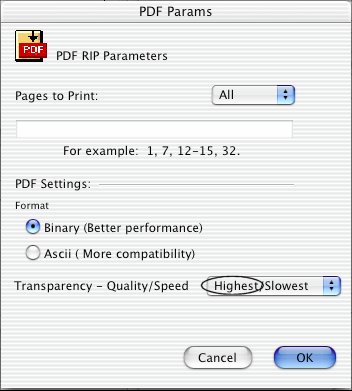
Note: If you are using Adobe InDesign® to create an EPS file, use the equivalent options as those described above for Adobe Illustrator. When creating a PDF 1.4 file in Adobe Illustrator:
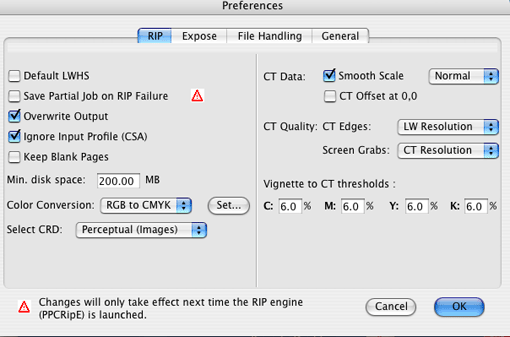
Note: If, however, you choose to select the Create Outline option in an Adobe application, you can prevent hairlines from appearing by RIPing the file at 600 dpi and specifying whole number values for CT and LW. For example, LW=2400 and CT=600 (or 400). |
||
|
|
|||
Technical contact(s) |
|||
Submitted by |
Viki Bar-on | ||
Date submitted |
17 Sep 2003 |
||