Home | Contact Us | Submit Troubleshooting Info | Search | Help
Output | Software Solutions | Proofing | Color, Screening and Calibration | Scanning | Digital Photography | Consumables | POS
Home | Contact Us | Submit Troubleshooting Info | Search | Help
Output | Software Solutions | Proofing | Color, Screening and Calibration | Scanning | Digital Photography | Consumables | POS
Product |
Kodak® InSite™ Creative Workflow, Asset Library, and Variable Data Print, all versions |
||
Platform |
Mac or PC |
||
Operating system |
Apple® Mac OS® X or Microsoft® Windows® |
||
Symptoms |
There are two possible symptoms. First, the transfer progress window displays the following
message after bytes are transferred: Second, in a Web browser, the transfer progress window indicates that files were transferred and lists the number of bytes sent, and the Close button appears. However, when you click Close and the server processing status window opens, the progress bar never goes beyond 0%. The transfer may or may not time out. No elements appear in the upload location. Upload history indicates that the upload failed. |
||
Cause |
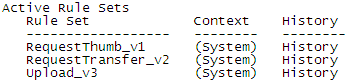
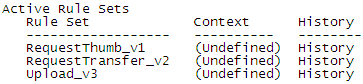
Upload automation rules may be failing to execute. On a Windows 2000 system (InSite Creative 3.0.3 or earlier), you can verify whether automation rules are the problem by performing the following procedure. The verification steps cannot be used on a Windows 2003 system (InSite Creative 3.0.4 or later). If you are on a Windows 2003 system, there is no easy way to verify that automation rules are the problem. In this case, we suggest that you skip the verification steps in the Cause section and go directly to the solution in the Solution section below to see if that solves the problem. To verify whether automation rules are the problem (Windows 2000 systems only):
If the automation rules are okay, then this is not the cause of the upload problem. Check the other Creative Workflow/Asset Library/Variable Data Print troubleshooting items for other possible causes. |
||
Solution |
Once you have verified that the automation rules are the cause of the problem (or you were unable to verify the cause because you are on a Windows 2003 system), complete the following procedure to fix the problem. The procedure is fairly complex, so you may want to contact product development for assistance in completing it.
|
||
Technical contact |
|||
Submitted by |
|||
Date submitted |
03 Apr 2008 |
||