Procedure |
|
- Make sure that the workstation serial cable is connected to both the workstation and the device.
- Make sure that the PPP link is up and the MCE device IP is properly assigned. If in doubt, use TCP/IP Config wizard from the Service Shell Host configuration window.
- Verify that the dongle is plugged in and recognized by the computer:
If the LED on the dongle lights up, and/or the dongle does not show up as a "green light" in the Creo Feature Licensing Manager, then the computer is not recognizing the dongle. Refer to Troubleshooting Dongle and USB Problems.
- Verify that the correct software and license definition files are installed:
- Consult the Controlled Release release notes for the correct versions of software to install.
Every feature-licensed release will require you to install a specific version of the Creo Feature Licensing Server and License Definition files on the customer workstation
- Use Service Shell>Version Checker to check all system versions for compatibility, including the Feature Licensing Server.
You can also check the version of the Creo Feature Licensing Server by starting Creo Feature Licensing Manager and clicking Help>About.
You can also check the version of the License Definition files by manually inspecting the files in \Creo\FeatureLicensing\Database. The version number is part of the filename (for example, ctp_magnus_vlf_ver2.cdf.xml is version 2 of the file). The license will not work correctly without the correct version of these files.
- For service applications, verify that you have a valid service license:
- In Creo Feature Licensing Manager, verify that you have a valid (non-expired) service license.
- If the service dongle has expired, plug the dongle into your service laptop and renew the dongle expiry date using Service Dongle Manager.
- For customer applications, verify that the customer license is valid:
- In Creo Feature Licensing Manager, verify that there is a valid customer license for the features that the customer has purchased.
- If there is no license, or if the license is not of the correct product type, obtain a license and enter it into the Creo Feature Licensing Manager.
- Check to make sure that the customer dongle is the correct one for the license.
The dongle serial ID is printed on the side of the dongle ("C" followed by a 5-digit number, for example, C06239). In Creo Feature Licensing Manager, use Dongle>Find Dongle to identify the dongle ID.
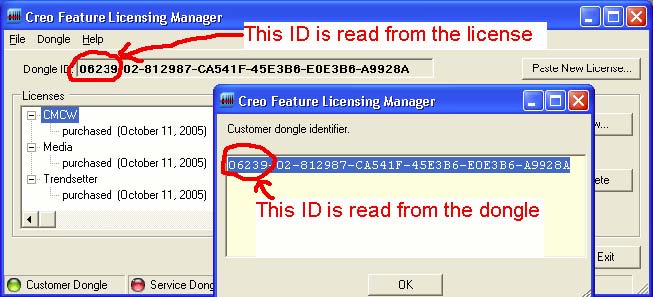
The ID in the license must match the physical dongle in order for the license to function properly.
- If the license and dongle do not match, send a request to LicenseKey@creo.com to re-generate the license for the correct dongle.
- Check to make sure that the license matches the device by checking the xml license that was sent to you, or by looking at the license.xml file in \Creo\FeatureLicensing\Database. Locate the entry, and verify that it matches the serial number of your device. Temporary licenses have a blank entry. Do not edit the license.xml file manually or the license will be invalidated and you will not be able to use the system.
- If the configuration or options are not what the customer expected, resolve the issue using the product escalation process.
The Response Centre can generate a temporary emergency license which can be used to run the device while any licensing issues are resolved.
|

