Background
|
|
The objective of the Intensity test is to find the required laser intensity
for optimal exposure at a resolution of 100 dpm, and the drum speed value
required to obtain optimal intensity.
Note: Test results depend on the plate type, so this test must
be performed for each plate type that the customer uses. Test results
do not depend on plate size or thickness.
|
Procedure
|
|
- Load a plate.
- Open the Lotem Calibration dialog box:
- For Lotem 400 Xpose—on the Xpose Utilities panel, double-click
LotemCalib.
- For Lotem 400—proceed as follows:
- In Brisque, from the Launch Pad, open the Setup panel, and then
double-click Devices.
- In the Output Device Handling dialog box, in the Device section,
select Plate Setter > Lotem > Lotem400.
- In the Operations section, select Lotem Calibration.
- In the Lotem Calibration dialog box (example shown for Lotem 400 Xpose),
in the Calibration Type list, select Intensity. The Current
Plate type and Plate Sensitivity parameters of the plate
that you loaded are automatically transferred from Lotem Controller.
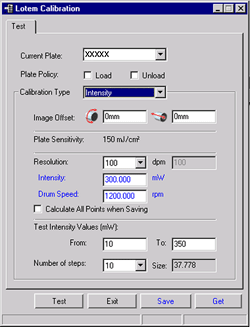
- Define the Plate Policy:
- Load plate—Automatically loads a new plate before the
test begins. If you clear this option, you can reuse the plate for
additional calibration tests.
- Unload plate—Automatically unloads the plate after the
test. If you clear this option, you can reuse the plate for additional
calibration tests.
- Define the Image offset values:
- Horizontal offset—The value around the drum in mm
- Vertical offset—The value along the drum in mm
If you use the same plate for several tests, define different offset
values for each test.
Note: The (0,0) offset coordinate is located at the upper-left
corner of the plate.
- Select the required value from the Resolution list.
Note: Do not modify the value in the Intensity box at this
time.
- In the Drum Speed box, type the recommended drum speed value
according to the plate type.
Note: The optimal drum speed value is the drum speed value with
which the optimal intensity is obtained.
- Clear the Calculate All Points when Saving check box. The working
conditions are updated for the resolution defined in the Resolution
box only.
- In the Test Intensity Values area, define the desired intensity
range in the From and To boxes.
Note: The recommended range is 180 mW to 300 mW.
- From the Number of steps list, select the required number of
exposures for the test intensity values range.
The size of the step interval is automatically calculated (size of step=[To
- From]/[Number of Steps - 1]) and is displayed in the Size box.
This value is intended as a quick reference for the Lotem operator,
and cannot be modified.
- If the test results are not acceptable, change the value in the
Drum Speed box as required, and repeat the test.
- If the test results are acceptable, proceed to step 11.
- In the Intensity box, type the value of the laser intensity
that produces the best exposure.
- Click Save. The new intensity and drum speed values are automatically
transferred to the Lotem Controller application.
|

