Background |
|
- The Lotem backup andrestore utility presents a fast and easy way to
save and restore the Lotem registry section, database, and DDB configuration
data.
- It supports all versions of Lotem family, including the Lotem 800,
400, ThermoFlex, and XL machines.
- All the relevant information is kept inside the Lotem PC hard disk,
freeing you from maintaining diskettes, and remembering when the last
backup was performed, under what conditions, who made the backup, where
it is stored, or what it contains.
- In addition, the utility includes advanced features like saving the
current configuration to a diskette, and viewing and comparing registry
files.
|
Procedure |
|
How to Restore
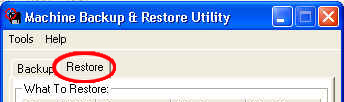
- Select the Restore tab.
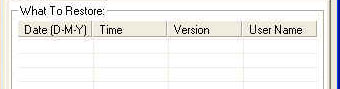
- From the list of previous backed-up packages, and based on the date,
time, and user name, select the package you would like to restore by
clicking the respective line with the left mouse button.
- In order to view the comments that were written for the selected package
(only if the user that made up this backup package wrote any comments)
click the Properties button or double-click on the
selected line.

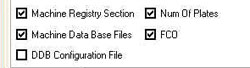
- Select the check boxes of the components you would like to restore.
By default, all the components that were backed up are selected and
available to be restored.
You can select any combination of components to restore. The components
that are not available will be disabled.
- Click the Restore Now button to complete the restore
operation.
How to Backup
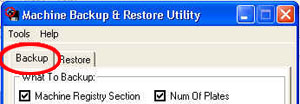
- Select the Backup tab.
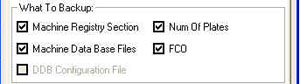
- Select the check boxes of the component you would like to save. By
default all 3 components are selected (registry, database, and DDB configuration),
but you can select any check box.
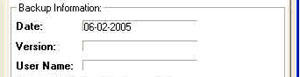
- In the User Name box, type your name (required).
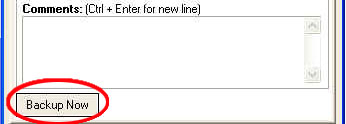
- In the Comments box, type any comments (optional).
Note that the current date and version number have been automatically
entered already, but you can change them.
- Click the Backup Now button to complete the backup
operation.
Advanced Features
Save To Diskette
This feature enables you to automatically save any combination of the current
Lotem registry section, database, and DDB configuration components to a
diskette.
- In the Backup dialog box, select the components you
would like to backup.
- In the User Name box, type your name (required).
- In the Comments box, type any comments (optional).
- Insert a diskette to the floppy disk compartment in the Lotem E-Box.
- From the Tools menu, select Save To Diskette.
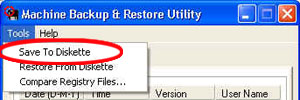
After a confirmation message appears, the utility will start saving
the components you selected to the diskette.
The components are stored under a new directory in the diskette, with
the name being a combination of the current date and time.
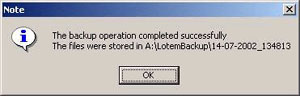
At the end of the operation, you will be presented with a message specifying
the exact name of the new directory in the diskette.
Compare registry Files
This feature enables you to compare (text wise) two different Lotem registry
sections that were previously backed up. You can also compare a previous
registry section to the current Lotem registry settings.
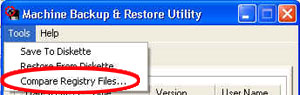
- From the Tools menu, select Compare Registry
Files.
The Compare Registry Files dialog box appears.

The first line in the list will always contain the current Lotem registry
settings, to which you can compare any other previous registry section
that was saved.
To compare two different registry sections:
- Select the first entry by clicking in the row.
- Press and hold the Shift key and click
in a second row.
- Click the Compare button to start the comparison.

The ExamDiff application starts and begins to compare the text between
the two selected registry files.
You can navigate between the differences by pressing the up and down
arrow keys. Green sections
indicate added lines; red
sections indicate deleted lines; blue
sections indicate changed lines.
To view the contents of a specific registry file:
- Click in the registry file row.
- Click the View button.

The Notepad application is automatically opened and displays the contents
of the selected registry file.
Under the Hood
The Lotem backup & restore utility saves the data to the C:\LotemBackup
folder in the Lotem PC.
- Every time you perform a backup operation, a new folder is created
under the C:\LotemBackup folder. The name of the folder
is a unique combination of the current date and time. For example, C:\LotemBackup\01-02-2002_095045.
- The new backup folder contains all the components that you chose to
backup:
- Lotem registry section: a copy of the current
registry section under the HKEY_LOCAL_MACHINE\SOFTWARE\Scitex\Projects\LOTEMXXX
registry key.
The name of the registry file is made up of the prefix Lotem_ followed
by the current date in the format of DD_MM_YYYY, and ends with a
.reg prefix. For example, Lotem_01-02-2002.reg
- Lotem database: a copy of the machine’s
C:\Lotem\LotemXXX\DataBase folder, including all its
subfolders.
- DDB configuration and settings: a copy of the
machine’s C:\Lotem\LotemXXX\UpLoadFile\DDB\TSP\lotem_ddb.sav
(or C:\Lotem\LotemXXX\UpLoadFile\DDB\VLSI\lotem_ddb.sav).
- A text file containing the backup session information of date,
time, user name and comments.
The name of the text file is made up of the prefix Info_ followed
by the current date in the format of DD_MM_YYYY, and ends with a
.txt prefix. For example, Info_01-02-2002.txt
- To download the utility, click: Lotem Backup and Restore Utility.
- Save the file to the Lotem desktop.
Downloading will install the utility and add a shortcut to the Lotem
desktop:

|

