Home | Contact Us | Submit Troubleshooting Info | Search | Help


    Output | Software Solutions | Proofing | Color, Screening and Calibration | Scanning | Digital Photography | Consumables | POS


Error message 5230 “Illegal buffer” appears on ThermoFlex Mid and Narrow


Product

 
  • ThermoFlex® Mid
  • ThermoFlex Narrow
  • Brisque®
  • TIFF Front End

Error

 
  • 5230 Illegal buffer on Brisque
  • Host abort request on Lotem Controller

Symptoms

 
  • Imaging does not progress
  • Files abort
  • Drum motor speed decreases to a complete stop and the carriage motor stops.

Cause


One or more of the following are possible causes:

  • Various incorrect expose or database parameters
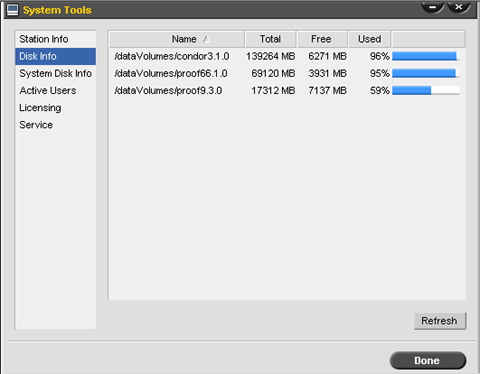
  • Brisque dataVolumes (hard disk) is full
  • VLSI / TSP cable connections
  • VLSI connector on the DDB board
  • VLSI / TSP cable
  • VLSI / TSP board
  • DDB board
  • MCF board
  • Strobe board
  • Drum motor power supply
  • Brisque maintenance cycle is required
  • Brisque RAM is insufficient
  • Brisque version is not updated

Solution

 
  1. Check the following parameters:
    1. Verify that the following parameters are correct:
      • File formats
      • File sizes
      • Plate sizes
      • Drum speeds
    2. Verify that the expose parameters (press format, screen set, offsets, and so on.) in Brisque are correct.
    3. Verify that the drum speed does not exceed the maximum allowed for the device (300 rpm).
      Make sure that the drum speed produces the following results:
      • 50% dot area = 50%
      • Solid area density = 0.07 dmin or less
      Refer to the Selecting the Optimal Drum Speed section in the Drum speed calibration test (for flexo plates).
  2. Check if Brisque dataVolumes are more than 90% full. If they are, remove some files.

  1. Check that the VLSI or TSP cable connections are not loose.
  2. If the configuration has a VLSI board, disconnect the cable from the connector on the DDB board and connect it to the other available connector on the DDB board.
  3. Replace the VLSI or TSP cable.
  4. In Brisque, run plotter diagnostics to verify that the VLSI or TSP board is working properly, and replace the VLSI or TSP board, if required.
  5. Replace the DDB board.
  6. After you replace the DDB board, if a master sprock error appears, try replacing the following components:
    • MCF board
    • Strobe board
    • Drum motor power supply
  7. Perform a Brisque maintenance cycle (FSCK, rebuild the desktop). Alternatively, in SciSMIT, select Customer Troubleshooting and run Customer Maintenance.
  8. Check if the Brisque workstation has enough RAM. Refer to Memory configurations for Brisque 5.0.
  9. Verify that the latest Brisque updates are installed.

See also


Technical contact(s)
 

Viki Arviv

Submitted by
 

Edward Broska

Date submitted
 

15 May 2005


    Copyright © 2005 Creo Inc. All rights reserved. Confidential. Back to top.