Procedure |
|
- Activate the plate length pop-up window:
- Locate the Loading system parameter (Software system\Loading
system\Loading system), and then locate the Display
measurement warning for user when loading a plate from loading system
dialog parameter.
- Amend the parameters value from 0 to 1.
(0 = Do not display; 1 = Display)
- When the plate loading sequence has finished, a length pop-up
window appears. Write down the value for the length of the plate.
- Load and punch a plate.
- Make sure the measured plate length is the same as the length displayed
in the pop-up window (after the loading sequence).
If the discrepancy between the two measurements is ±0.5 mm, then
amend the Hardware Tree as described in the next step.
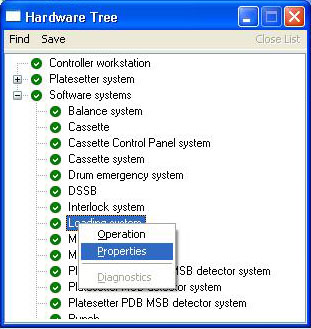
- In the Hardware Tree:
- Locate the Loading system parameter (Software systems\Loading
system).
- Right-click the Loading system parameter and select Properties
from the list:
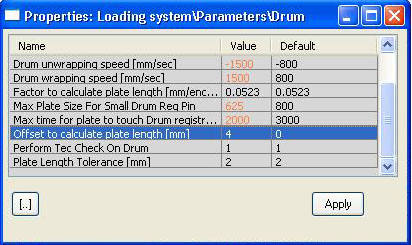
The Properties dialog box appears.
- Double-click Parameters.
- Double-click Drum, and locate the Offset
to calculate plate length [mm] parameter:
- If the length of the measured plate is longer than the length
displayed in the pop-up, then add the difference
to parameters value in the Hardware Tree.
- If the length of the measured plate is shorter than the length
displayed in the pop-up, then subtract the difference
from the parameters value in the Hardware Tree.
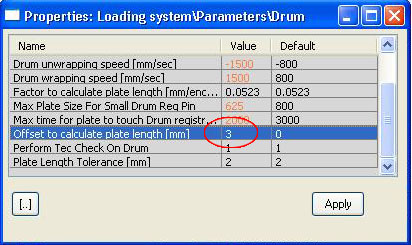
Example:
Measured plate length = 770 mm
Plate length in pop-up window = 771 mm
Amend Offset to calculate plate length [mm] parameter
by -1
(1070 - 1071 = -1):
|