Home | Contact Us | Submit Troubleshooting Info | Search | Help
Output | Software Solutions | Proofing | Color, Screening and Calibration | Scanning | Digital Photography | Consumables | POS
Home | Contact Us | Submit Troubleshooting Info | Search | Help
Output | Software Solutions | Proofing | Color, Screening and Calibration | Scanning | Digital Photography | Consumables | POS
Ripro Backup (Legato) TIC - Installation Guide
Previous Page | ToC | Next Page
Customize Setup
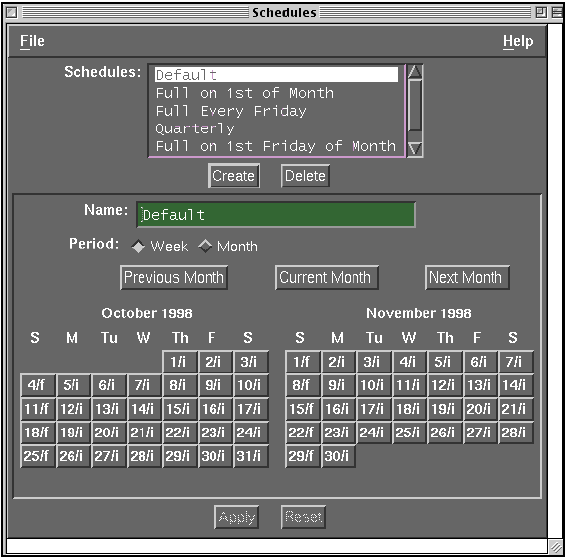
Customizing Schedules
The two main factors in determining the type of backup schedule are:
The optimal time for performing the backup is when the server is acquiescent (with few files open). This is either late at night or over a weekend.
* Where 15GB/hour is the accepted backup rate for DLT7000 Series Magnetic Tape devices. The rate may vary depending on the platform and SCSI type.
For example:
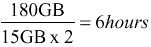
For a 180GB RAID and Q2-15 Jukebox the calculation is as follows:
It is recommended that a weekly Full Backup be performed over the weekend.
If the plant works every day in three shifts, a sliding schedule of Full Backups should be planned.
Identical Start Time for Full and Incremental Backup
 |
If you are using the default schedule, Full Backup every Sunday and Incremental Backup every day, skip this section. |
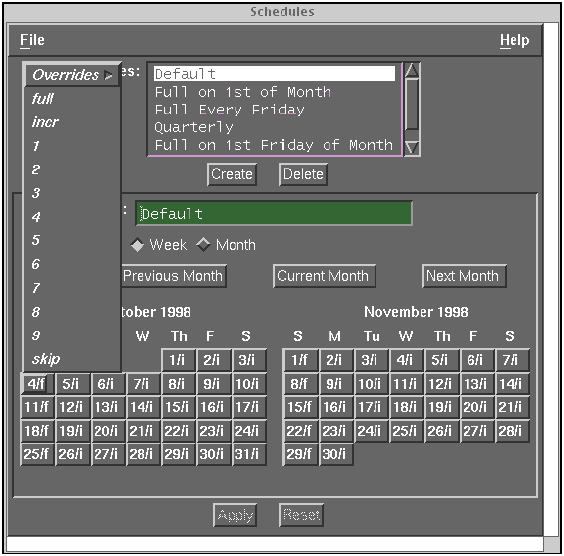
- If you want no backup at a certain day, choose skip on that day.
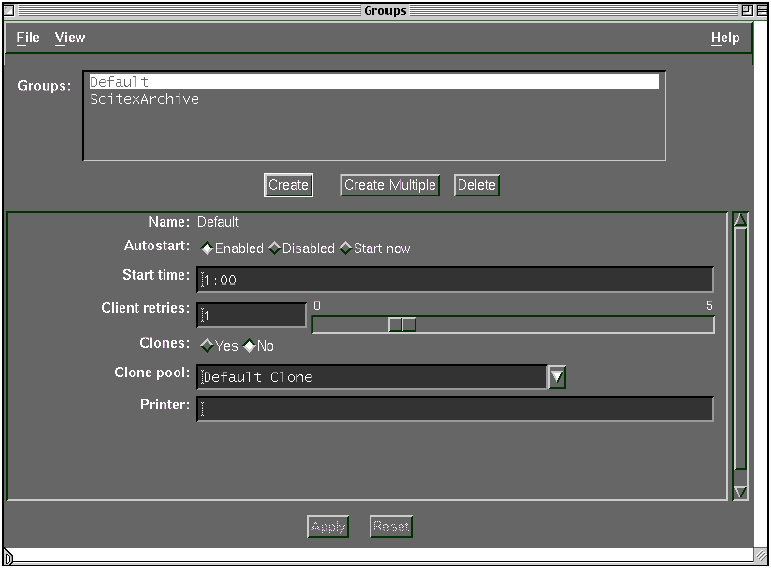
Customizing the Group
Enable the Default group to which the client belongs. When the default group is enabled, the NetWorker backs up all clients in the group according to the pre-configured selections.
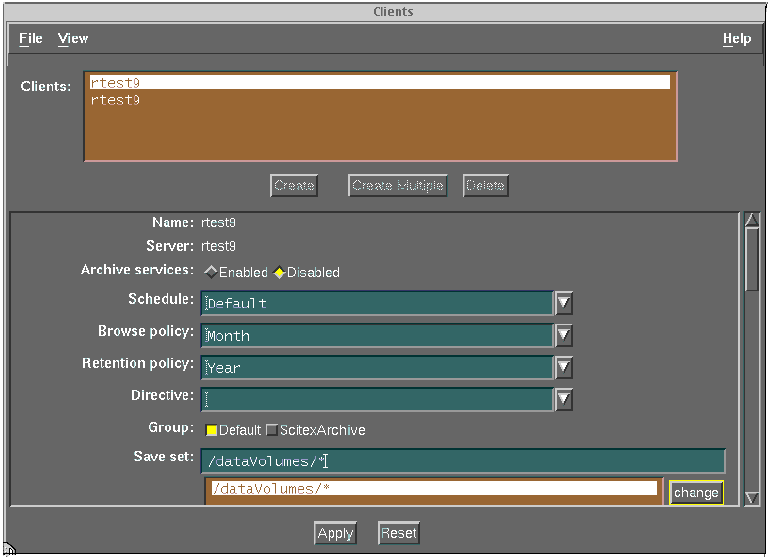
Updating Client Setup
The Clients dialog window is now displayed.
If you are using the default schedule then proceed from step 6 and update the different policies.
If you need to create a client, proceed from step 3 (for a Sliding Schedule, refer to Creating a Sliding Backup Schedule in Customize Setup).
Note: The suffix will be different depending on a customer’s DNS setup.
At the Browse policy text field, a list of policies can be similarly displayed.
The Browse policy selected reflects how long the file entries remain in the file indexes before being automatically removed. The recommended setting is 2 weeks for backup.
|
A Full Backup remains in the on-line index
for a period of time equal to the Browse Policy plus one complete backup
cycle.
This setting determines the number of cartridges required. |
Calculation (from previous example):
| Amount to be backed up (full backup) | 180GB |
| Incremental Backups 10%/day x 6days | 80GB |
| Total Space Required | 260GB |
| No. of Cartridges /week | 4 (35GB compressed » 70GB) |
| No. of
cartridges according to Browse/Retention Policy |
12 (2 weeks +1 complete backup cycle) |
At the Retention policy text field, a list of policies can be similarly displayed.
The Retention policy selected reflects how long the save sets on a volume will be recoverable before the volume is available for recycling. The recommended setting is 2 weeks. It must be equal to the Browse policy setting.
At the Directive text field, a list of policies can be similarly displayed.
The Directive policy selected is an instruction set created to maximize the efficiency of a backup and handling of special files. The recommended policy is Unix standard directives.
Note: Do not use the Unix with Compression Directives option due to hardware compression, which is default.
This ends the basic Legato Backup configuration.
Different start time for Full and Incremental Backups
For example:
| Schedule Name | Type |
| Full on Saturday, Skip Daily | To perform a Full Backup on Saturday and skip a Daily Incremental Backup. |
| Incremental Daily, Sat Skip | To perform a Daily Incremental Backup and skip Full Backup on Saturday. |