Home | Contact Us | Submit Troubleshooting Info | Search | Help
Output | Software Solutions | Proofing | Color, Screening and Calibration | Scanning | Digital Photography | Consumables | POS
Home | Contact Us | Submit Troubleshooting Info | Search | Help
Output | Software Solutions | Proofing | Color, Screening and Calibration | Scanning | Digital Photography | Consumables | POS
| Opening Large Files Using PhotoShop Free Plug-in |
| Brisque Impose Application Note |
D. Doron
October 20, 1996
This document is intended for all sales support, demonstrators, technical support, ICS customer education and marketing.
Background
Why we should care
Needed action
Background
One of CreoScitex's biggest advantages is
post-RIP correction. In order to perform post-RIP image retouching, PhotoShop
is the most popular application used. Since CreoScitex RIP generates a composite
CT (combining all images per page) usually the file is large and therefor slow
to open.
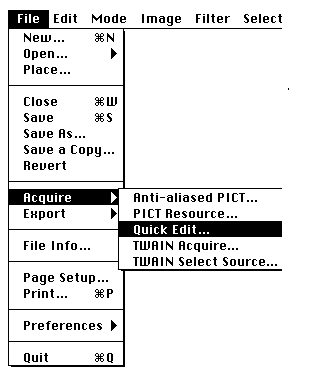
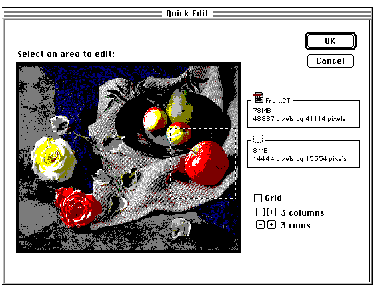
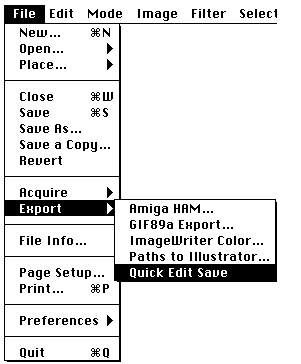
The Quick Edit FREE plug-in lets you open only the needed portion of a large image. Working with this plug-in has two distinct advantages:
The Quick Edit plug-in opens CreoScitex CT and uncompressed TIFF files
Quick Edit plug-in is available starting with PhotoShop 3.0
Why we should
care
Every PS/M and Brisque user should learn how to use
this valuable freebie. Since all Brisque files reside on the Brisque disk, and PhotoShop
on a Mac client, this plug-in can save significant time due to network traffic reduction
that translates into faster correction cycle and improved productivity.
Needed action
Learn how to use it and share this tip with all
customers, prospects, sales support, demonstrators, trainers, technical support and any
other front-line team members. This can save the average user hundreds of hours per year!