Home | Contact Us | Submit Troubleshooting Info | Search | Help
Output | Software Solutions | Proofing | Color, Screening and Calibration | Scanning | Digital Photography | Consumables | POS
Home | Contact Us | Submit Troubleshooting Info | Search | Help
Output | Software Solutions | Proofing | Color, Screening and Calibration | Scanning | Digital Photography | Consumables | POS
Installation (F50)
Hardware Installation
Remote Support and Control via Modem
The remote support of this product is carried out via a modem and utilizing communication software. Therefore, a dedicated phone that will also be connected to the modem must be allocated. The modem is connected to the Brisque .
The remote access via a modem enables connection to the customer's Brisque in order to perform technical support directly.
Installation Procedure Outline
Hardware required
| Item# | Item | Description | Qty | Cat# |
| 1. | Modem | External Suprafax Modem | 1 | 605A70400 |
| 2. | Cable | RS-232 Sh 9Rec to 25Pl | 1 | 504L41518 |
Modem Installation Procedure
Note: Proceed with the installation even if there is no dedicated telephone line available.
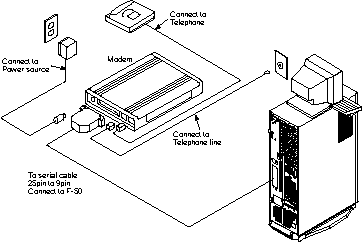
Figure 1-16. Modem Connections - Schematic View
Modem Configuration
 |
Ensure that the modem is properly connected (COM2), then power on the Modem and the Brisque (Power up the Brisque, refer to Powering Up the Brisque). |
To Configure the Modem
tty1 Available
(The number next to the tty may be 0 or 1).
If you receive a message other than Available, press ^c, return to the
beginning of this section.
Connecting to /dev/tty1, speed 38400.
The escape character is ^\ (ASCII 28) followed by c to get back, or followed by ? to see
other options.
- From this point on, if you make a mistake in typing press Enter, type at, press Enter and make sure OK appears. You may now repeat the last command.
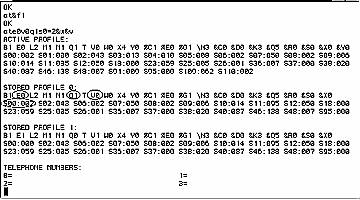
Verify that the marked parameters are the same as those you have displayed (on the monitor they are not highlighted).
If by chance you have different numbers displayed, or no numbers at all, exit (use the following exit procedure) and return to the beginning of this section.
Exit Procedure
When you have finished the modem configuration use this procedure to exit.
Note the message on the screen.
Make sure your modem displays AA on the front panel.