Home | Contact Us | Submit Troubleshooting Info | Search | Help


    Output | Software Solutions | Proofing | Color, Screening and Calibration | Scanning | Digital Photography | Consumables | POS


Installing Windows XP 1.04 From Image Disk for ThermoFlex Mid II Hybrid and Narrow Hybrid


Product

 
  • Kodak® ThermoFlex® Mid II Hybrid
  • ThermoFlex Narrow Hybrid

Operating system


Microsoft® Windows® XP


Background


If Windows crashes or if you replace the hard disk and no disk backup exists, you must reinstall the Microsoft Windows software from scratch using the Windows Ghost image DVD. The ThermoFlex Mid or Narrow Hybrid Windows Ghost image DVD is an exact copy of the disk as it left the factory, without updated registry and platesetter database parameters. Using this disk requires you to reinstall the Windows license, Controller software, registry and database.

Note: It is strongly recommended to back up the following:


Requirements


Windows 1.04 Ghost image DVD


Procedure


Notes:

  • Before you start, write down the license number that appears on the Windows ghost image DVD.
  • If you can still backup the registry and database before you continue, do so.

To install the image disk:

  1. Connect the ThermoFlex platesetter to the network.
  2. Insert the image DVD.
  3. In the DOS screen Startup menu, select 1. Load System.
    Wait for about 10 minutes while the software loads.
  4. When the software is loaded, a message appears:
    Please remove any CD-ROM and floppy from the drive and press Ctrl+Alt+Del to reboot the computer.
    Follow these instructions.
  5. After the computer starts, the Windows XP Professional Setup dialog box appears. Type the product key (license) number and click Next.
  6. The computer name and administration password appear automatically. Click Next.
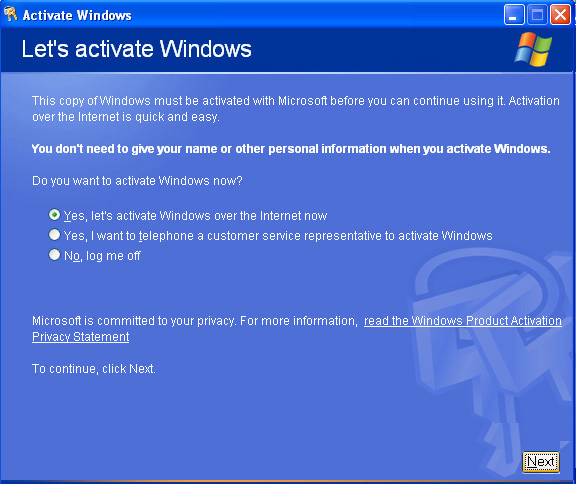
  7. In the Activate Windows dialog box, to select the relevant option:
    • Yes, let's activate Windows over the Internet now: To activate Windows through the network.
    • Yes, I want to telephone a customer service representative...: If there is no network connection.
  8. To approve the license, proceed according to the option you selected:
    • Through the network:
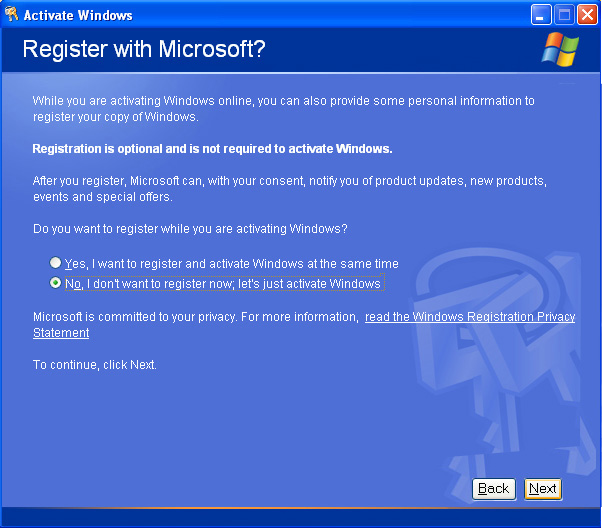
      1. In the Register with Microsoft dialog box, select No.
      2. In the Collecting Resistration Data dialog box, enter your registration data and click Next, or click Skip.
    • Through Microsoft (if there is no external network):
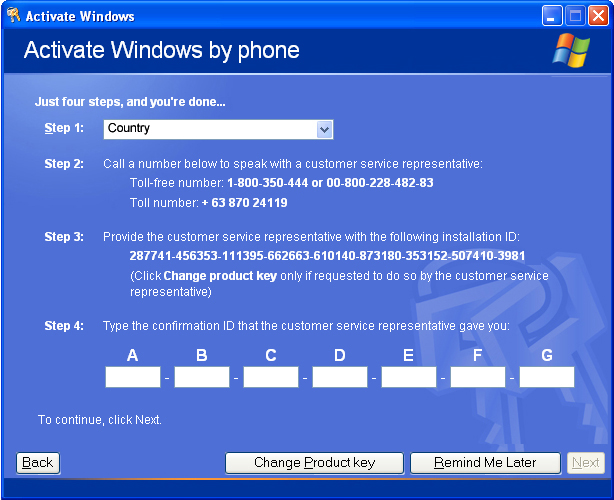
      1. In the Activate Windows by phone dialog box, select the country in which you are installing the software.
        The Microsoft customer service telephone number appears.

      2. Call the Microsoft customer service telephone number.
        The Microsoft telephone number appears.
      3. Read the installation ID that appears in Step 3 to the customer service representative.
      4. The customer service representative reads you a confirmation ID number. Type that ID number in the boxes and click Next.

Note: If the dongle plug is connected in the E-box, the software recognizes it and runs a wizard. In the first Wizard dialog box, click Finish.

  1. Install the ThermoFlex Controller software.
  2. Install the registry and database.

Technical contact
 

Content owner: Viki Arviv
See the Escalation page for escalation contacts.

Date submitted
 

06 Sep 2006


    Copyright © 2005 Creo Inc. All rights reserved. Confidential. Back to top.