|
Product |
|
Kodak® Lotem® 800 II family platesetters
|
Operating system |
|
Microsoft® Windows® OS 2000
|
|
Component |
|
Universal system bus (USB) port
|
|
Symptoms |
|
USB port on Lotem 800 Controller computer fails to recognize any USB
device.
|
|
Cause |
|
- The USB device attached to the Lotem 800 Controller computer has malfunctioned
and Windows does not recognize the device.
- The USB has unknown device properties, meaning its driver may need
to be updated.
- USB controller in BIOS may be disabled
- USB port on Lotem 800 Controller computer may have beeen incorrectly
connected to the CPU board during an earlier upgrade.
|
|
Solution |
|
Perform the following diagnostic steps in the order that they appear.
- Verify if the USB port is working.
Plug in a USB flash drive into the USB port and verify if the flash
drive is recognized.
- Verify if the USB controller in the BIOS is enabled.
When the Lotem 800 Controller computer is booting up, press either the
Del key or F1 key (on the keyboard)
to enter the BIOS setup. In the BIOS setup, locate the advanced chipset
control and verify if the USB controller is in enabled mode.
- Reinstall the BIOS.
Insert the Automatic BIOS disk into the computer’s
drive and restart the computer. After the BIOS has loaded, remove the
disk and restart the computer again. When the message The CMOS
memory has been recovered with security copy appears, restart
the computer for a third time.
- Verify if the computer recognizes the USB device.
- On the desktop, right-click My Computer and select
Manage.
- Click Device Manager and expand the Universal
Serial Bus controllers list. If the device does not appear
in the list, navigate to the Action menu and select
Scan for hardware changes.
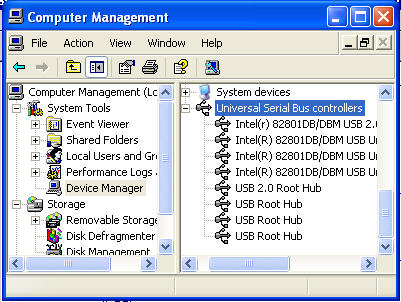
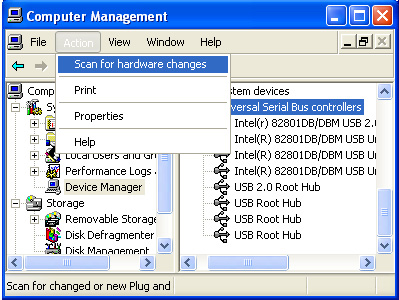
If the device does appear in the list, but the computer fails to
recognize it, then update the driver as described in step 5.
- Verify if the most upto date driver is installed on the computer.
- Locate the device in the Universal Serial Bus controllers
list (see step 4).
- Right-click on the name of the USB device and select Update
Driver...
- Follow the Hardware Update Wizard onscreen instructions.
- Verify if the USB device is working properly.
- Locate the device in the Universal Serial Bus controllers
list (see step 4).
- Right-click on the name of the USB device and select Properties.
- Click the Driver tab and then click Update
Driver.
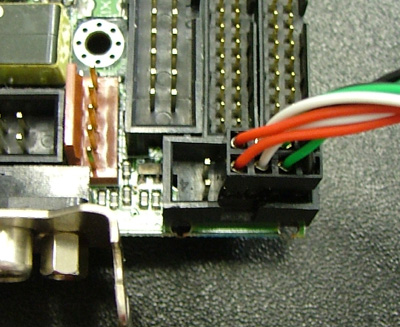
- Verify if the USB port on the Lotem 800 Controller computer has been
correctly connected to the CPU board (see image below).
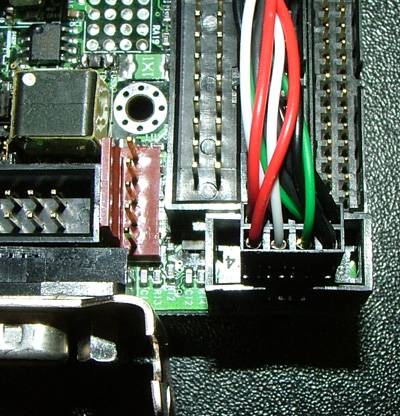
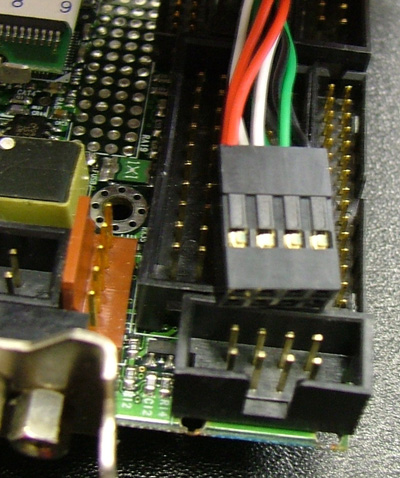
- Verify if the USB port connector is correctly connected to the connector
on the CPU board.
Each male pin on the board must have a female counterpart on the USB
port connector. The image below depicts an incorrectly connected USB
port connector.
- Install Microsoft® Windows® 2000, version 1.04 image (FCO – 512-00337A for Lotem 800II).
|
|
See also |
|
|
|
Technical contact(s) |
|
Alon Davidor
|
Submitted by |
|
Alon Davidor
|
Date submitted |
|
21 Mar 2007
|

